Make any AI project business-ready in one prompt. Try Wix Headless →

To migrate from WordPress to a headless CMS, you audit your content and plugins, model that content as structured data, export it from WordPress, rebuild the frontend and redirect every old URL before you switch over. Done carefully, the move can improve performance, cut down the plugins you maintain and give you the freedom to build any frontend you want on top of a headless solution.
This guide walks through each step, the testing and SEO checks that protect your site and how AI agents can now handle much of the heavy lifting.
Move your WordPress site to a fully managed stack with Wix Headless. Use an AI agent to bring over your posts, products and media, then build the frontend you want. Wix handles the hosting, security and infrastructure, and you can add ecommerce, bookings, CMS, payments and more with a single prompt.
TL;DR: how to migrate from WordPress to a headless CMS
Moving from WordPress to a headless CMS means separating your content from the way it's displayed. Your posts, pages and media move into a backend that serves them through an API, and a new frontend presents them to visitors. The work is less about copying content and more about planning, testing and protecting your SEO before you switch over.
You'll learn:
What a headless CMS is and how it differs from WordPress
A headless CMS stores and manages content but doesn't control how that content looks. It delivers content through an API to any frontend you choose, from a website to a mobile app to a smart display. The "head" in this case is the presentation layer, and a headless system removes it so you can build your own.
WordPress works the other way. It's a traditional, or coupled, CMS where the database, the admin panel and the theme that renders pages all live in one PHP application. That tight setup is why WordPress is easy to start with. It's also why theme, plugin and server updates can affect the whole site at once.

So is WordPress a headless CMS?
Not by default. WordPress can work as a headless CMS when you use its REST API or GraphQL to deliver content to a separate frontend. In this setup, you still run and maintain WordPress as your content management system, while the frontend is built and managed separately.
Migrating to a different headless CMS means replacing WordPress as your CMS, which is the approach this guide focuses on. The resulting setup is often described as a headless website.
Worth knowing: "headless" describes the architecture, not a specific product. Some headless platforms only manage content, while others also include commerce, bookings, payments and hosting. That difference matters a lot once you start replacing WordPress plugins.
How to migrate from WordPress to a headless CMS
The steps below follow the order most successful migrations use. Planning comes first, the frontend comes later and nothing goes live until testing, redirects and SEO checks are done.
01. Audit your content, plugins and integrations
Start with a full inventory of what your site holds and what it actually does. Content is only half the picture. The workflows your site runs every day are just as important, and they're the part people most often discover missing after launch.
Before you plan anything else, check each of these areas.
Every post type, page, category, tag, author and custom field, plus how many items each holds
Every plugin and what it does, including plugins that depend on other plugins
Forms, user accounts, memberships and checkout flows
External integrations such as email marketing, CRM, payment and shipping services
Custom code in your theme, functions file or code snippets
Tracking tags, analytics events and conversion goals
Then sort your plugins into three groups. Content plugins (custom fields, SEO, multilingual) shape your data model. Frontend plugins (page builders, sliders) disappear with the old theme. Business plugins (forms, ecommerce, memberships) need a direct replacement in the new stack. A migration is also the easiest time to prune old pages that no longer earn traffic.
Expert tip from Moran Shemesh, Engineering at Wix:
"The thing that costs agencies the most isn't building the site, it's everything that comes after. Maintaining plugins, managing integrations, being the permanent help desk because the client can't figure out the backend. Wix Headless eliminates that entirely. You hand over a clean dashboard, the client runs it themselves and you move on to the next project."
02. Back up everything and plan for recovery
Take a full backup of your WordPress database, theme and plugin files and your uploads folder, since media files live outside the database. Store the backup somewhere separate from your current host and confirm you can actually restore it.
Decide up front how you'd roll back if the launch goes wrong and who makes that call. Also agree on when the old WordPress site can be retired. Keeping it available, but not public, for a few weeks after launch gives you a fallback and a reference for anything that didn't transfer.
03. Design your content model
A content model defines the types of content your new site will store and the fields each one has. Instead of one large block of HTML per post, you break content into structured fields like title, summary, author, hero image and body. Structured fields are what let the same content appear cleanly on a website, an app or a product feed.
Map relationships, custom fields, taxonomies and reusable blocks explicitly, since none of them transfer on their own. Test the model on 10 to 20 real posts before you commit. If the fields don't fit your actual content, it's much cheaper to change them now. This is also the moment to choose a headless CMS that supports the content types and business features you need.
04. Export your content and media
WordPress gives you two different ways to get content out, and they aren't interchangeable. The built-in export tool (Tools > Export) creates a WordPress eXtended RSS (WXR) file in XML format. According to the WordPress export documentation, it can include posts, pages, custom post types, comments, custom fields, categories, tags, custom taxonomies and users.
The REST API is a separate interface. It exposes content through individual endpoints that you query page by page, which makes it easier to feed into a migration script. Custom post types and taxonomies only appear in the API if they're registered with REST support, and drafts or private content require authentication. Some custom field data may also need extra configuration before it shows up.
For complex sites, you may need a custom migration script that combines both sources or reads directly from the database. Media needs its own pass as well. Download your images and files, upload them to the new platform and keep a map of old file URLs to new ones so you can update links inside your content.
One thing worth knowing: write your import as a repeatable script rather than a one-time copy. Run a test batch of 50 to 100 posts first, fix what breaks and make sure a second run doesn't create duplicates.
05. Convert blocks, shortcodes and custom fields
This is usually the hardest step. WordPress content is full of editor blocks, shortcodes and page-builder markup that only the old theme understands. Each one needs to become either a structured field or a component your new frontend knows how to render.
Start with the blocks and shortcodes you use most and decide how each should map. Custom fields with repeating or flexible layouts deserve extra testing, since they're a common source of blank or broken sections after import.
06. Rebuild the frontend and key user journeys
Choose a JavaScript framework or static site generator and build templates for each content type. Use server-side rendering or static generation so search engines receive complete HTML rather than an empty page that fills in later.
Rebuilding layouts is only part of the job. Reproduce the journeys that matter to your business, such as signing up, booking, checking out and contacting you, along with features your plugins used to handle like sitemaps, structured data, forms and site search.
AI-assisted builds can shorten this step a lot. Shahkam Abdul Aziz, a freelance agency builder who delivers client projects on Wix Headless with the Wix CLI and Cursor, has seen it firsthand. As he puts it, "Wix Headless cut my dev time by at least 70 to 75 percent. Projects that used to take me months now take weeks, and sometimes less than two."
A setup decision worth making early: decide who owns the frontend after launch. AI coding tools can scaffold most of it from a description, but someone still needs to review the output, test it on real devices and keep it consistent with your brand.
07. Map URLs and set up 301 redirects
Export a full list of your current URLs and map each one to its new address. Keep URLs identical wherever you can. Where they have to change, add a permanent 301 redirect from the old address to the new one, including category pages, author pages and image URLs that earn backlinks.
Cover URL variants too (trailing slashes, http vs https and www vs non-www) and pick one canonical host. Redirect retired pages to the closest relevant page rather than the homepage. Then test every redirect to confirm it lands on a live page in a single hop, without chains or loops.
08. Test in staging, launch and monitor
Deploy the new site to a staging address and test it against your audit from step 01. Before launch, check each of the following.
Your most important landing pages and their content
Forms, transactional emails, logins and password resets
Checkout, bookings and any payment flows
Third-party integrations and APIs
Mobile layouts and page speed
Redirects plus the SEO and tracking checks in the next section
Agree on a rollback trigger before you switch, such as a broken checkout or a large drop in indexed pages. If you can, run the old and new sites side by side for a week or two before you change your domain. If you'd rather lower the risk further, you can migrate in phases, moving one section such as the blog first and routing it to the new frontend before moving the rest.
Before you start: plan for content created during the transition. Set a content freeze date after which no one publishes on WordPress, or schedule a final sync so new posts don't get lost.

Why sites move from WordPress to a headless CMS
Most teams don't migrate because WordPress stopped working. They migrate because the site grew past what a theme-and-plugin setup handles comfortably, or because keeping it fast and secure started to take more time than building it.
Faster pages and better Core Web Vitals
A headless frontend can be pre-rendered and served from a content delivery network, which removes much of the database work WordPress does on every request.
Headless doesn't guarantee speed on its own, though. A heavy JavaScript frontend can load slower than a well-tuned WordPress site, so test the new frontend's performance before launch rather than assuming it will be faster.
Security and patching that someone else owns
A critical PHP security alert in October 2026 shows how much work can sit behind a simple-sounding update. On October 21 the PHP team published fixes for two vulnerabilities that could allow unauthenticated remote code execution and urged all PHP users to update. The PHP team's advisory lists the affected versions.
What a PHP vulnerability means for your site
Because PHP runs on the server, a self-hosted WordPress site depends on a chain of updates. Your host has to provide the patched version, someone has to confirm the site actually runs it and your theme and plugins have to stay compatible. Hosts often handle part of this, so the key question is which responsibilities are yours and which belong to the provider.
A managed platform takes on the underlying infrastructure instead. On Wix-managed infrastructure, Wix maintains the platform and its security. That includes the following.
A dedicated security team with continuous monitoring and regular penetration testing
Layered protection such as firewalls and intrusion prevention
Independent certifications including SOC 2 Type 2, ISO 27001 and PCI DSS Level 1
The Wix Trust Center has the full details.
Worth being clear on: moving to a headless CMS doesn't automatically mean someone else manages your infrastructure. Some services manage only the CMS, leaving frontend hosting and maintenance to you. Managed platforms handle server maintenance and security updates, but you're still responsible for account access, permissions and integrations.

Fewer plugins to maintain
A typical WordPress site depends on plugins for SEO, forms, caching, security, backups and ecommerce. Each one has its own update cycle and its own compatibility issues. Moving to a headless setup is a chance to replace that patchwork with native features or a small number of well-supported services.
Content you can reuse anywhere
Structured content in a headless CMS can feed a website, an app and an AI-built frontend at the same time. That matters more now that so much frontend work happens in AI tools.
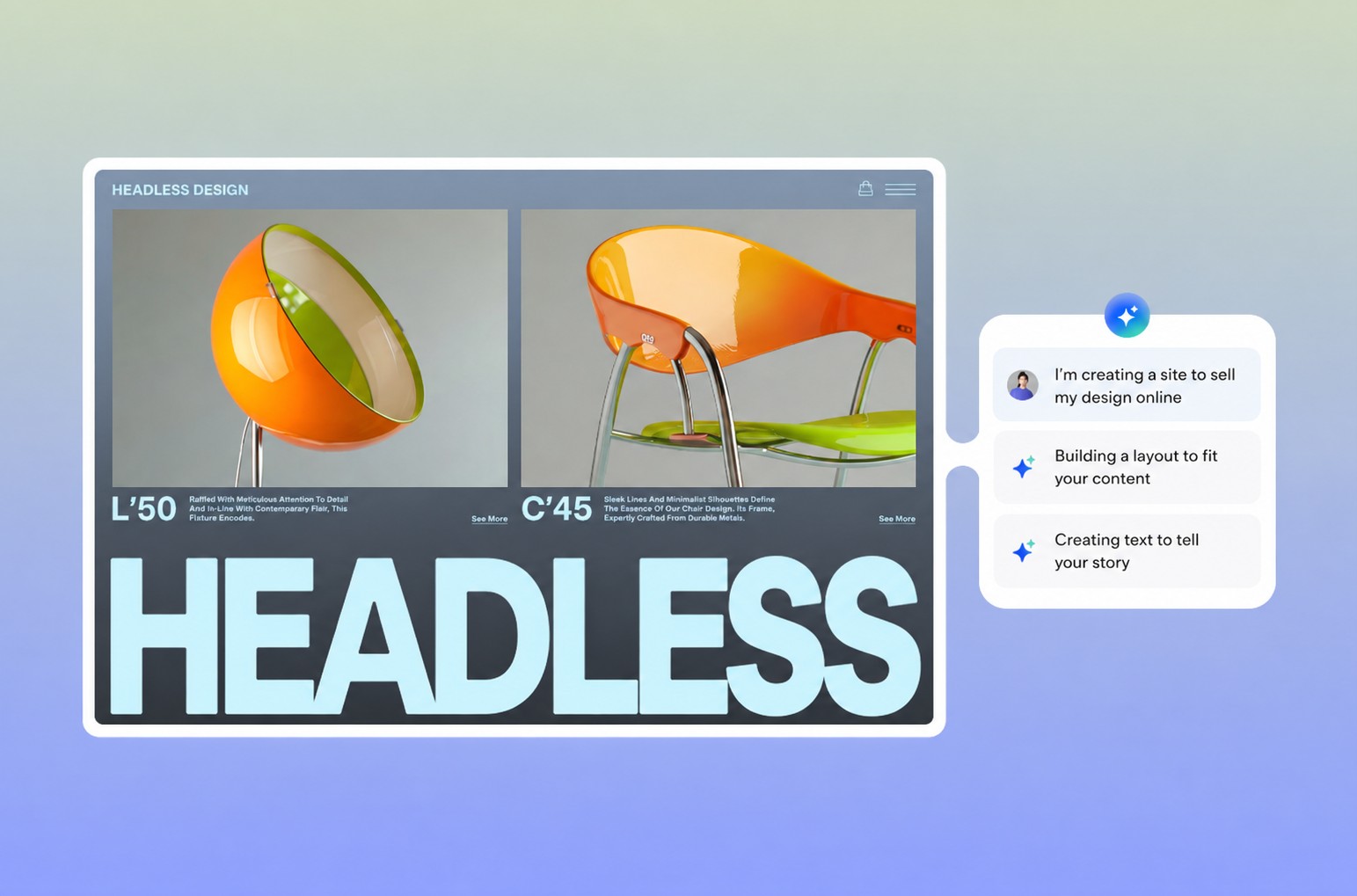
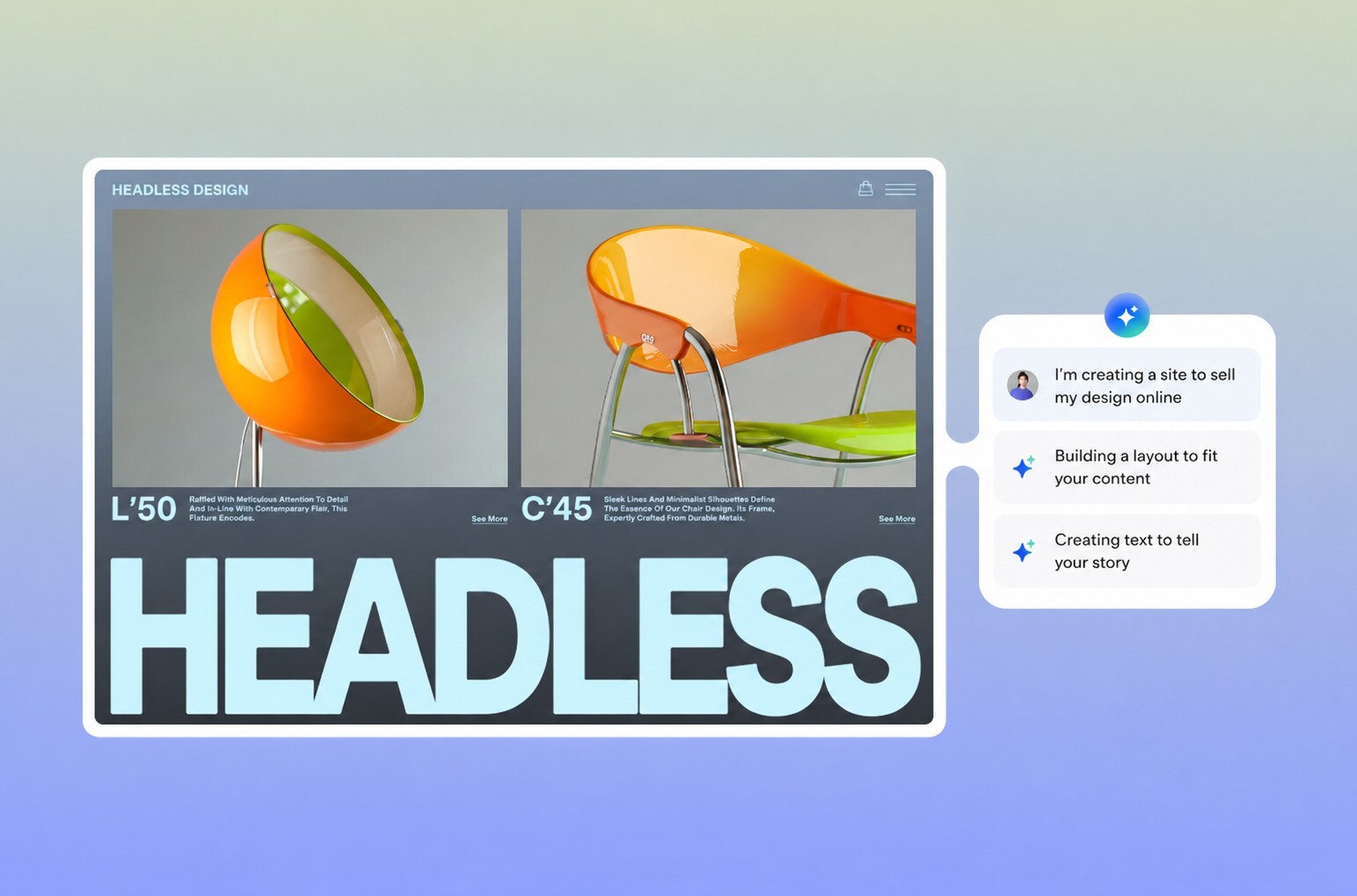
Something most people don't expect: AI coding agents make a custom frontend far more practical than it used to be. Instead of fitting your content into a theme, you describe the experience you want and the agent helps build and maintain it.
How to protect your SEO and tracking during the migration
Rankings are tied to URLs, content and signals that WordPress plugins often handled quietly. Record where you stand before you move, then carry each of those signals over on purpose.
Start with a baseline. Before launch, export your top landing pages, organic traffic, conversions, indexed URLs and crawl errors. These numbers are what you compare against after the switch, and they're the only reliable way to spot a migration problem early.
Metadata: carry over every SEO title, meta description and open graph tag from your SEO plugin into the new content model.
Canonical tags: set a canonical URL on every page so duplicate versions don't compete with each other.
Structured data: rebuild the schema markup your plugins added, such as article, product and FAQ schema.
XML sitemap: generate a new sitemap and submit it to search engines on launch day.
Staging privacy: block your staging site from search engines so it isn't indexed as a duplicate of your live site.
Internal links: update links inside your content to the new URLs instead of relying on redirect chains.
Analytics and tracking: reinstall tracking tags on the new frontend and test every event and conversion. Historical analytics may not transfer, so export the reports you want to keep.
After launch, compare your numbers against the baseline every week for at least 30 days. Watch organic traffic to your top landing pages, conversions, indexed pages, crawl errors and 404s. Investigate any significant drop right away, starting with redirects and metadata on the affected pages.
How it actually works: search engines need time to recrawl a migrated site, and how much rankings move varies from site to site. Clean redirects and an updated sitemap help, but keep monitoring and act on significant losses instead of assuming they'll settle.
Should you migrate from WordPress? A quick fit check
A headless migration pays off when your site has outgrown its theme, when performance and maintenance take up real time or when you want one content source for several channels. It's also a strong fit for online stores and service businesses that need payments, bookings or member areas behind a custom design.
A small, stable brochure site may not benefit enough to justify the effort. In that case the extra planning can outweigh the gains, and a visual tool to create a website could be the simpler move. Cost is worth checking too, since headless CMS pricing varies widely between content-only platforms and full business backends.

Headless WordPress or a full headless CMS
You have two broad options. Headless WordPress keeps WordPress as the content backend and adds a new frontend that reads from its API. Your editors keep the familiar admin, but you still host, update and secure WordPress and its plugins.
A full headless CMS replaces WordPress entirely. It's more work up front because every content type and plugin feature needs a new home. In return you stop maintaining two systems, and you can choose a backend that already includes the business features your plugins used to provide.
Good to know: a headless setup changes the editing experience. WordPress's preview button shows your old theme, not the new frontend, so plan for a working preview or staging flow before editors start publishing.
Read more: Headless CMS pros and cons

How to migrate from WordPress to Wix Headless
The eight steps above apply to any headless CMS. This section shows how one platform can automate parts of them, mainly the audit, content mapping, import and frontend scaffolding, while testing, redirects and launch still follow the same process.
Wix Headless gives you a business backend, including a headless CMS, ecommerce, bookings, events and payments, behind a frontend you control. Instead of rebuilding each WordPress plugin, you move into a backend where those features are already built in and managed from one dashboard.
The easiest way to make the move is with an AI coding agent such as Claude Code, Cursor or Codex and the Wix migration skill, a ready-made set of instructions your agent follows. Your agent discovers your WordPress content, maps it to Wix and imports supported content, products, media and blog posts, while you stay in control of the frontend.
Here's the short version. For screenshots, a prompt you can copy and a real store migration, see the full guide on how to migrate from WordPress to Wix Headless.
01. Get your tools ready
You'll need a Wix account, an AI coding agent, Node.js v24.22.1 or higher and Git. Ask your agent to check your setup and install the recommended Wix plugin.
02. Install the migration skill and describe your goals
Ask your agent to install the Wix migration skill. Specify which site to migrate, your design preferences and which content and data to move. If you want Wix to build and host your frontend, also install the Wix Headless skill. For private data, prepare your WordPress username and application password.
03. Follow the migration flow
Your agent guides you through setup, asks about your preferred frontend approach and helps you choose what to migrate, including pages, comments and customer data.
04. Review and approve the plan
Review the content map, which shows where your WordPress content will go, and the execution plan, which outlines setup tasks and migration limitations. Ask for changes before approving the import.
05. Review your site before launch
Once the migration finishes, review the final report and test your site. If the process stops midway, you can rerun it to resume.
Before launching, you'll need to configure payment and shipping settings, enable member emails if needed, create URL redirects, connect your domain and check analytics. Members must reset their passwords, nested blog categories become flat and some product types may need manual review.
Connecting to the Wix backend is free. A Premium plan is needed for things like accepting payments, connecting a custom domain and accessing advanced analytics.

Wix's own Developer Advocate, Ran Levi, moved his WordPress site to Wix this way. His agent rebuilt the frontend as a near-identical replica, moved his book shop into Wix Stores and imported his content. With approval checkpoints, testing and a few manual fixes along the way, the full migration took about two days.
Expert tip from Gonen Jerbi, R&D Manager at Wix:
"Client hand-off used to be the part of the project nobody wanted to deal with. Now the client gets a Wix dashboard with natural-language editing, specialized AI agents to help them manage the site and staging previews so they can approve changes before anything goes live."
Worth knowing: WordPress migration with the Wix skill is currently in Developer Preview. It works today and is still evolving, so run a dry run first and review the mapping carefully. AI handles discovery, mapping and import, but content accuracy, unsupported features, integrations and the user experience still need a human review.
Ready to leave server patching behind? Migrate your WordPress site to Wix Headless.

WordPress to headless CMS FAQ:
How long does a WordPress to headless CMS migration take?
As a rough planning estimate, a small to mid-size site often takes several weeks to a few months. Timing depends on how much custom content you have, how many plugins and integrations need replacing, how complex your frontend is and how much testing you do. AI migration tools can speed up the content transfer, but review, testing, redirects and manual setup still take real time.
Can I migrate my WordPress site without losing content?
Yes, if you audit everything first and test the import before launch. Run a test batch, compare item counts between the old and new sites and spot-check posts with complex blocks or custom fields. Keep your full WordPress backup until you've confirmed nothing is missing.
Will I lose my SEO rankings when I move away from WordPress?
Not if you plan for it, although some movement is possible. Keep URLs the same where you can, set up 301 redirects for every URL that changes and carry over your titles, descriptions, canonical tags and structured data. Compare traffic, indexed pages and top landing pages against your pre-migration baseline to check the move hasn't damaged your SEO.
What happens to my domain when I migrate from WordPress?
Your domain stays yours, but it doesn't move automatically. Once the new site has passed testing, you point the domain to the new platform from your registrar or connect it through the new platform's settings. Plan the switch for a low-traffic time and keep the old site available in case you need to roll back.
What should I do if a WordPress plugin has no headless equivalent?
Start by asking what the plugin actually does for your site. The feature may already exist natively in your new platform, be available as a separate service or be simple enough to rebuild in the frontend. If none of those work, decide if the feature is still essential or if you can retire it.
Can editors still preview content in a headless CMS?
They can, but preview has to be set up on purpose. The new frontend needs a preview or staging mode that shows unpublished content the way visitors will see it. Agree on how preview works before launch so editors aren't surprised.
Can I keep using WordPress as the backend?
You can use WordPress as a headless backend by connecting its REST API to a new frontend. Editors keep the WordPress admin, but you still host, update and secure WordPress and its plugins. Moving to a different headless CMS removes that maintenance from your list.


