Updated: 17 hours ago

A professional, branded business email is the backbone of how your team communicates and how clients see your brand.
Setting it up right means your domain name is connected, inboxes are organized, security is solid and every message looks professional from day one.
Get your business email up and running fast. Wix provides built-in security, plenty of storage and real-time tools to help you stay on top of your work. Everything’s backed by 24/7 support so you can focus on growing your business.
TL;DR: how to set up a business email
Buy or point a domain you control, pick a mail host, then prove ownership by adding that host's MX entries at your registrar. After that you create individual mailboxes, add shared aliases such as sales@ or support@, switch on two-factor sign-in, publish SPF and DKIM records so your messages pass authentication checks, and send a test both ways before you hand the address out.
You'll learn how to:
Connect your email to your domain and brand
Organize inboxes as your team grows
Protect your email from security risks
Improve your reach and reliability
Check that everything is working perfectly

Before you set up your email
Before you start, make sure you have a few basics in place. You’ll need a domain name, an email service to host your inbox and admin access to your domain settings so you can make required changes during setup. Once those are ready, the rest is quick and straightforward.
How to set up a business email address
Getting your professional inbox ready is a straightforward process when you break it down into manageable actions. By following this roadmap, you will move from a blank slate to a fully functional communication hub that represents your brand perfectly.
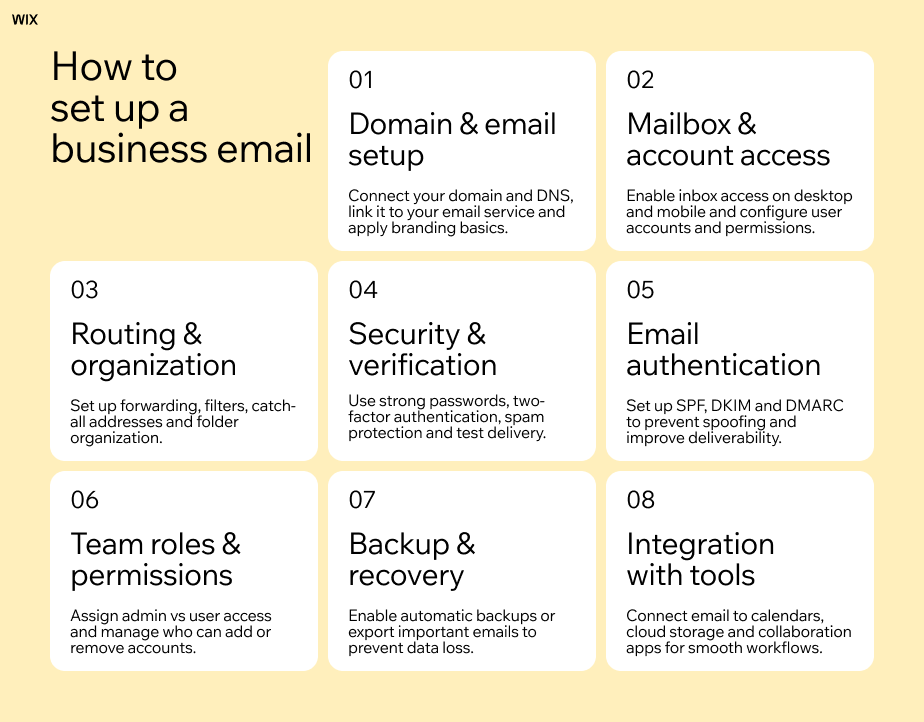
01. Get a domain name
If you already have a website, you likely already own a domain. If not, you will need to purchase one from a registrar or through a website builder like Wix.
When choosing a domain, keep it simple and relevant to your brand. Avoid long strings of numbers or complicated spellings that might confuse clients. A clean, recognizable domain makes it easier for customers to remember you and reduces the chance of typos when they try to contact you.

"There are three WIN Pillars for choosing a great domain name. 1) Words: Keep it short and easy to spell, 2) Identity: Make sure it’s relevant to your business and 3) Name: Ensure it’s unique and distinguishable. Avoid numbers and hyphens as they can complicate the domain." - Keren Friedlander, Product Manager at Wix
02. Choose an email provider
Once you have your domain, you need a service to host your mail. While you can host your own email server, most businesses opt for cloud-based providers for reliability and ease of use. Popular options include Google Workspace and Microsoft 365. These platforms offer robust security, spam filtering and integration with other productivity tools.
Wix offers custom business email addresses so you can use a professional inbox instead of a generic one. When you set up your site, Wix gives you a business email that matches your domain (for example, info@yourbusiness.com), helping you look trustworthy and consistent across all communications.

Wix offers business email addresses with Google Workspace integration, meaning you get Gmail’s familiar interface along with powerful tools like Calendar, Drive and advanced security, all while managing everything conveniently from your Wix account.
Learn more:

03. Connect your domain
If you purchased your domain and email hosting from the same provider, they are likely already connected. However, if you bought them separately, you will need to link a custom domain to your email service provider. This usually involves updating your domain's DNS (Domain Name System) records, specifically the MX (Mail Exchange) records, to point to your new email host.
Don't worry if "DNS records" sounds intimidating. Most providers offer step-by-step wizards to guide you through this process. If you built your site with a platform like Wix, this step is often built directly into the dashboard. Wix offers custom business email addresses that automatically sync with your site's domain, saving you the headache of messing with complex DNS settings manually.
If you purchased your domain separately from your email host, you will need to verify ownership. This usually involves logging into your domain registrar account and adding a specific TXT record provided by your email host. It might sound intimidating, but it is essentially just copying and pasting a line of text to prove you own the website address.
Once verified, your email platform can legally send messages on behalf of your brand.
You may also be interested in:
04. Create inboxes and aliases
Now that your domain is connected, it is time to build the actual email addresses. This is the fun part: deciding what goes before the "@".
Set up user inboxes
For a solo entrepreneur, start by creating the primary inbox for yourself (e.g. yourname@yourdomain.com).
If you have employees or partners, set up their individual accounts now as well. Since Wix offers business email addresses with Google Workspace integration, adding new team members is a quick administrative task rather than a technical hurdle.
Use email aliases for organization
Beyond individual accounts, you should utilize aliases to look bigger and stay organized. An alias is a forwarding address that sends mail to your main inbox without requiring a separate login.
For example, you can create help@, sales@ or press@ and have them all route to you. This allows you to manage different aspects of your business from one place while presenting a structured front to the public.

Discover more: Is Wix good for business email?
05. Adjust basic settings
Your email setup isn't complete until you've customized your sender profile.
Set your display name
Before you send your first message, you need to configure how you appear to recipients. The "Display Name" is often the first thing people see in their inbox, even before the subject line. Make sure this is set to your full name or your company name so recipients instantly recognize who is contacting them. A vague or incorrect display name is a fast way to get ignored.
Create a professional email signature
Next, craft a professional email signature. This should include more than just your name; add your job title, a link to your website and perhaps a small logo. If you plan on forwarding emails to a personal account or need to set a "Reply-To" address that differs from your sending address, handle those configurations now.
Inbox organization
A tidy inbox is the secret to a stress-free workday. Try using folders to group messages by project, client or department and set up filters to sort your mail automatically. You can even create rules to forward or tag the big stuff so you never miss a beat. When your inbox is organized, you can find exactly what you need in seconds and get back to doing what you love.
06. Enable security essentials
Business emails are prime targets for cyber threats, so standard password protection isn't enough.
Enforce strong passwords and 2FA
You must enforce strong password rules for yourself and your team. Avoid simple phrases and require a mix of characters. Most importantly, turn on two-factor authentication (2FA) immediately. This adds a second layer of defense, usually requiring a code from your phone to log in, which makes it significantly harder for intruders to access your data.
Manage team access and permissions
You should also review access controls if you have a team. Not everyone needs administrative privileges. Assign roles carefully so that only trusted personnel can change billing information or reset passwords.
Taking ten minutes to lock down your security settings now can save you weeks of recovery time from a potential breach later.
Learn more about website security and domain name management.
07. Protect your emails with backup and recovery
Even when everything is running smoothly, accidents can happen. Regularly backing up your business email is the best way to make sure you never lose important messages, contacts or files. Most email providers, including Google Workspace through Wix, offer automatic backup options or the ability to export your mailboxes easily.
Set a schedule to back up your accounts and store copies securely in the cloud or offline. This way, if an email gets deleted or a system error pops up, you can restore your data quickly and keep your business moving.
08. Configure deliverability basics
Deliverability sounds technical, but it simply means ensuring your emails actually land in the inbox rather than the spam folder.
To do this, you need to authenticate your domain using three protocols: SPF, DKIM and DMARC. Think of these as digital ID cards that tell receiving servers, "Yes, this email is really from us and we authorized it."
SPF (sender policy framework): lists the IP addresses allowed to send mail for your domain.
DKIM (domain keys identified mail): adds a digital signature to your emails.
DMARC (domain-based message authentication, reporting and conformance): tells servers what to do if an email fails those checks.
Most providers, including Wix, guide you through adding these records to your DNS settings. Do not skip this; without it, your beautiful marketing emails might never be seen.
Learn more: What is DNS?
09. Test before using it
Never assume everything is working perfectly without a test run. Send an email from your new business address to your personal Gmail or Outlook account. Check to see how the display name appears, if the signature looks correct on mobile and desktop and most importantly, if it lands in the primary inbox or the spam folder.
Then, do the reverse. Reply to that email from your personal account to ensure your business inbox is receiving mail correctly. If you set up aliases like info@, test those as well to verify they are forwarding to the right place. Catching a configuration error now is much better than missing a client inquiry next week.
10. Complete next steps after setup
Once the technical side is handled, integrate your email into your daily workflow.
Download the mobile app for your email provider so you can respond on the go. If you use project management tools, a CRM or marketing software, connect your new email address to them. This keeps all your business data synchronized.
Finally, update your public-facing platforms. Change the contact email on your social media profiles, your website's contact form and your business cards. You want to ensure every potential lead is directed to your new, professional hub.
Learn more:
Why you need a business email
Using a professional, domain-based email address (like name@yourbusiness.com) instantly shows customers that you’re legitimate, established and serious about your brand.
A business email reinforces your identity with every message you send, helps your emails land in inboxes instead of spam folders and keeps work communications separate from personal ones.
As your business grows, a business email also scales with you, making it easy to create consistent addresses for new team members and departments.
Business email benefits

Instant credibility
A recent study shows that 60% of consumers say they prefer to be contacted by brands through email, underscoring why using a professional, domain-based business email can be a strategic advantage for credibility and customer interaction. When customers see a custom domain, they instantly trust you more, as it shows you've invested in your business.
Brand consistency
A business email address reinforces your brand identity with every message sent. Wix offers business email addresses with Google Workspace integration, meaning you get the branding power of a custom domain with the reliability of Gmail's interface.
Better deliverability
Using a business email prevents your emails from landing in spam folders, as generic email addresses used for business mass-mailing often get flagged as spam. Properly authenticated business emails have a much higher chance of landing in the primary inbox.
Team organization
A branded email also scales with you; as you hire employees, you can easily create consistent addresses (like name@yourbusiness.com) for the whole team, without creating entirely new accounts. This keeps your communication organized and professional.
Learn more:

How to set up a business email FAQ
Can I set up a business email for free?
Technically, yes, but it often comes with limitations. Some web hosting providers include free email hosting, but these interfaces can be clunky and lack the security features of dedicated providers like Google Workspace. Free services like Gmail (yourbusiness@gmail.com) are not true business emails because they don't use your custom domain, which can look unprofessional to potential clients.
Do I need a website to set up a business email?
Technically, no, but you do need a domain name. You can purchase a domain and set up email hosting immediately, even if your website is still under construction or if you plan to operate without one for a while.
Can I use a free Gmail account for business?
You can, but it is not recommended. An address like yourbusiness@gmail.com lacks the credibility of name@yourbusiness.com. It can make customers worry about the legitimacy of your operation. A custom domain email signals that you are an established professional.
What is the difference between an alias and a user?
A user is a standalone account with its own login and inbox (like jane@business.com). An alias is a forwarding address (like support@business.com) that delivers mail to an existing user's inbox. Users usually cost money per account, while aliases are often free.
How many email address should I create?
This depends on the size of your team. At a minimum, you should have one personal address (name@) and one general address (info@ or contact@). As you grow, you can add specific department emails like billing@ or jobs@. Start with what you can manage effectively; remember that you can always add more aliases or users later.


