Build with Grok. Run it on Wix. Upload your site and go live →

An AI-generated website can give you a great starting point, but what happens when you're ready to publish it? You'll need hosting, a domain and the business features that turn a collection of pages into a working website.
Grok and Wix bring these parts together, so you can move from building to running your site without piecing together separate services.
Build it with Grok. Let Wix take care of the rest. Create a website through conversation with the Wix Plugin or upload your existing Grok project. Publish it with managed hosting and add payments, bookings and ecommerce as you grow.
TL;DR: how to build a website with Grok and Wix
Use Grok Build and the Wix Plugin to create and publish a website, or bring an existing Grok project to Wix. This guide covers how to connect the plugin, build and publish your site, upload existing files, add business features and update your website after launch.
You'll learn how to:
Connect the Wix Plugin in Grok Build
Create and publish a new site
Bring an existing Grok project to Wix
Add ecommerce, payments and bookings
Edit and maintain your site after launch

Why build your website with Grok and Wix?
Grok gives you a flexible way to create a custom website without starting from code or building every page yourself. You can describe what you want, refine the design through conversation and generate the code for your site. But a finished website also needs somewhere to live and the right features to serve customers.
That's where Wix comes in. It provides managed website hosting, security and access to business solutions like ecommerce, payments, bookings and content management. You can manage your website and business operations from one dashboard instead of connecting separate services and figuring out how to make them work together.
The result: You get the creative flexibility of AI website building with the hosting and business infrastructure to turn your site into something you can actually run and grow.
Build a new website with Grok and Wix step by step
This workflow uses Grok Build, xAI's coding agent that runs in your computer's terminal, together with the Wix Plugin. It's more technical than chatting in the Grok app, since Grok works with your website's files and code, but it lets Grok create a Wix site, connect business features and publish it.
01. Install the Wix Plugin in Grok Build
First, install Grok Build and open your terminal in the folder where you want to build your website. Then install the Wix Plugin to build with Wix business services from your terminal. Run the install command or find Wix in the plugin marketplace.
grok plugin install wix --trustThe plugin includes two components that help Grok work with Wix:
Wix Skills: Instructions that guide Grok through tasks like creating a Wix project and connecting business features.
Wix MCP: A connection that lets Grok access Wix documentation and interact with your Wix account and services.

02. Connect your Wix account
Once the plugin is installed, ask Grok to create a Wix project. When prompted, sign in to your Wix account and approve the requested permissions.
This gives Grok access to the Wix services it needs to create your site and connect the features you request. Don't have a Wix account yet? You can sign up for free during this step.
03. Describe the website you want
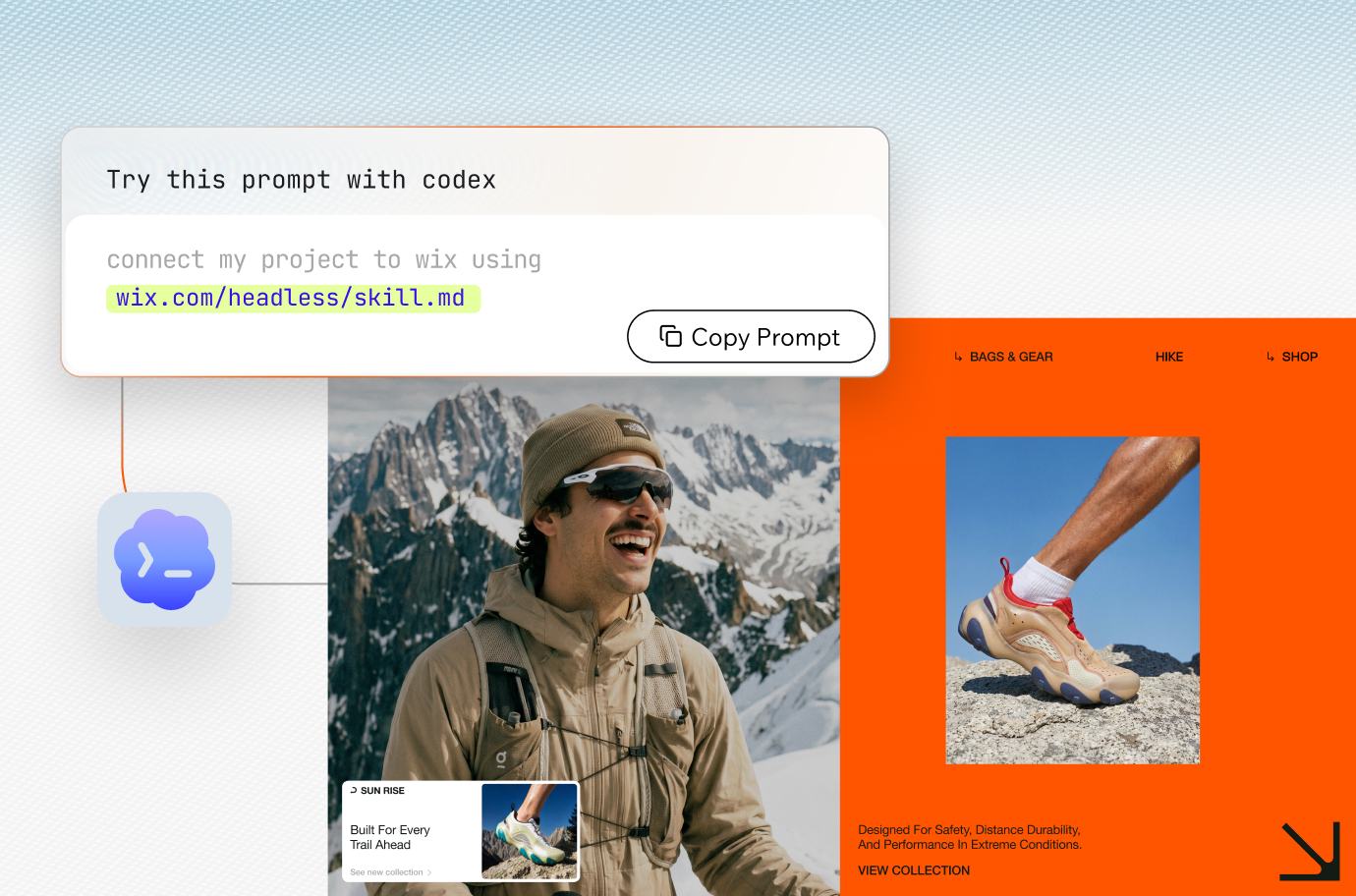
Tell Grok what your business does, which pages you need and what you want visitors to do on your site. Include Wix's setup instructions by referencing wix.com/headless/skill.md in your prompt.
For example, try this:
Build a website for a yoga studio with a homepage, class schedule, instructor profiles and contact page. Connect Wix Bookings so visitors can book classes and Wix Payments so they can pay online. Follow the Wix setup instructions at wix.com/headless/skill.md.
The more detail you provide, the closer the first version will be to what you have in mind. Describe your products or services, how customers should book or pay and what information you want to manage through Wix.
You can also ask Grok to build the site in stages. Start with the main pages and navigation, then add business features and refine the design.
04. Let Grok create and publish your website
Grok uses your instructions to create a Wix project, generate the website pages and publish the first version. It then gives you two links: one to your live website and another to your Wix dashboard.
Open the live link to see how the site looks to visitors. Check the page layouts, navigation and content, then return to Grok Build to request changes.
Your first published version is a starting point. You can keep working with Grok to add pages, improve the design and connect more features.
05. Add business features and refine your website
Once the basic site is ready, ask Grok to connect the Wix services your business needs. Instead of building systems for payments, bookings or product management from scratch, Grok can connect your website to existing Wix business solutions.
Here are some prompts you can adapt:
Online store: "Add a product catalog with product images, prices and an add-to-cart button. Connect it to Wix Stores."
Bookings: "Add a 30-minute consultation service with a booking calendar and online payment. Connect it to Wix Bookings."
Content management: "Create a Wix CMS collection for my portfolio projects and display them on a projects page."
Design updates: "Simplify the homepage navigation and add a contact button to the header."
Grok writes the code that connects your website to the requested Wix services. Wix provides the underlying functionality, including product catalogs, orders, bookings and payment processing. You can then manage the business data through your Wix dashboard.
Some features need additional setup before they're ready for visitors. For example, you'll need to configure your payment provider, booking availability and notification settings. Not every Wix app is supported, so check the list of supported and unsupported apps before planning your site around a specific integration.
Learn more:

06. Publish updates and manage your business
When you're happy with your changes, ask Grok to publish the site. Your latest version will go live on your Wix-hosted website.
You can also connect a custom domain to give your site a branded address. Buy a domain through Wix or connect one you already own. Connecting a custom domain requires a Premium plan. You'll also need a Premium plan to accept payments.
After publishing, you can manage everyday business tasks from your Wix dashboard. Update products, check orders, manage bookings and edit content without having to change the website's code. When you want to update the design, add a page or connect another feature, return to Grok Build and ask it to make the changes through the Wix Plugin.
Before sharing your site, run through this checklist:
Test your navigation, links and contact forms.
Check how your pages look on phones and tablets.
Complete a test booking or checkout.
Verify product details, prices and contact information.
Connect your custom domain and check that it loads correctly.
Add page titles and meta descriptions to your pages.
A note about hosting: This guide uses Wix-managed hosting, so you don't need to configure or maintain your own server. Wix also provides a free SSL certificate and managed cloud hosting on a global network that scales automatically with your traffic. Developers who prefer to host their websites elsewhere can use another hosting provider and connect their projects to Wix business services through Wix APIs and SDKs. This approach requires additional development work.
Expert tip from Claudio Joao, founder of Felicé Studios:
“It's better for me to host everything on Wix, because Wix is a big company with all the rights clearly written on its website. If something happens, you have a strong background behind you.”
What can you add to your Grok-built website with Wix?
Connect Wix business features to give your website the functionality your business needs. Here are some examples of what you can add.
Website type | Wix features |
|---|---|
Online store | Products, inventory, cart, checkout and payments |
Booking website | Services, schedules, appointments and payments |
Class-based business | Class schedules, bookings and payments |
Content website | CMS, dynamic pages and content management |
Event website | Event listings, ticket sales and RSVPs |
Business website | Contact forms, CRM and customer management |
You can start with the features you need and add more as your business grows. Some features need additional setup and not all Wix apps are supported, so check the compatibility list before choosing an integration.
Already created a website with Grok?
You don't need to start from scratch. If your site is ready to publish, you can upload its files directly to Wix.
Export or download your finished website files from Grok.
If you built the site with a framework like React, run its build process first. Wix uploads the finished output rather than building your source project.
Make sure the main HTML file is at the top level of the upload. If there are several HTML files at that level, name your homepage index.html.
Go to the Wix upload page to upload website files, then drag in your website folder or ZIP file.
Open the live URL to check your site, then sign in or create a Wix account to save it and manage it.
Uploading creates a new Wix project. From your dashboard, you can then connect a domain and the business features you need.
Important: The upload supports static HTML, CSS, JavaScript and other assets like images, fonts and video, up to 20 MB in total. Wix serves your files as uploaded and doesn't build them or run custom server-side code.

Read more:
Wix Connector vs Wix Plugin: which should you use?
The Wix Connector and the Wix Plugin work in different Grok environments and serve different purposes.
Wix Connector in Grok chat: Connects your Wix account so Grok can access and work with content on an existing Wix site. It doesn't create or host a new Wix site.
Wix Plugin in Grok Build: Lets Grok create new Wix projects, connect Wix business features and publish your website on Wix-managed hosting.
If you're starting a new website with Grok and want to run it on Wix, use the Wix Plugin. If you already have a Wix site and want to work with its content from Grok chat, open Connect Apps in your Grok settings, search for Wix and click Connect.

How much does it cost to build a website with Grok and Wix?
Connecting your site to Wix is free, with no developer pricing, API fees or enterprise tiers. You can build and test your site before paying, and pricing works the same way as for any Wix site.
You upgrade to a Premium plan when you're ready to accept payments, connect a custom domain or get in-depth analytics. Your use of Grok and Grok Build follows xAI's own plans and terms.
How to build a website with Grok and Wix FAQ:
How long does it take to build a website with Grok and Wix?
A simple website can be live in one session, since Grok publishes a first version as soon as it creates your site. Sites with stores, bookings or lots of content take longer, mostly because you'll add your own products, services and copy.
Can Grok build a website and publish it on Wix?
Yes, with the Wix Plugin in Grok Build. Grok creates a new Wix project in your Wix account, builds the pages and publishes them on Wix-managed hosting. You can keep asking it to publish new changes.
Do I need a terminal to connect Grok to Wix?
Yes, for the workflow in this guide. The Wix Plugin runs in Grok Build, which works in your computer's terminal. The Wix Connector in regular Grok chat doesn't need a terminal, but it works with existing Wix sites rather than creating new sites.
Can I connect an existing Grok-built website to Wix?
Yes. You can upload the finished files if it's a static site or connect the project through the Wix Plugin in Grok Build to keep developing it.
Can I upload a website made with Grok to Wix?
Yes, as long as it's a static site up to 20 MB. Framework projects need to be built first, since Wix serves the files as uploaded.
What business features can Grok connect to Wix?
Most Wix business solutions, including Wix Stores, Wix Bookings, Wix Events, Wix Blog, CMS and Pricing Plans. Some apps aren't supported for sites built this way, so check the compatibility list first.
Can I use a custom domain for my Grok website on Wix?
Yes. You can buy a new domain through Wix or connect one you already own. Connecting a custom domain requires a Premium plan.
Is it free to run a Grok website on Wix?
Connecting your site to Wix is free, with no developer pricing, API fees or enterprise tiers. You need a Premium plan to accept payments, connect a custom domain or get in-depth analytics.
What's the difference between the Wix Connector and the Wix Plugin?
The Wix Connector works in Grok chat and lets Grok access and work with content on an existing Wix site. The Wix Plugin works in Grok Build and lets Grok create new Wix projects, connect business features and publish your site on Wix-managed hosting.