Updated: Aug 26
Get the perfect domain for your eCommerce store: find your domain→

To test your checkout end-to-end before launch, you place a real test order and follow it from cart to fulfillment, fixing any issue before a real customer ever meets it. Before you build your own eCommerce website and open it to buyers, you want proof that every part of that flow actually works.
Wix allows businesses to customize the eCommerce checkout experience and testing that experience end-to-end is what confirms it works before your first real order. This guide walks you through a repeatable way to check the full flow, so you catch payment, shipping and order errors while they are still cheap to fix. If you are still learning how to sell online, run these checks before you announce your store to anyone.
TL;DR: how to test your checkout before launch
A broken checkout quietly kills sales you worked hard to earn, which is why a full test run matters more than any other pre-launch task. Set up a safe test environment, place a real test order as a customer, check payments and totals, confirm the emails and backend, then repeat on mobile. Here is the flow at a glance.
Step | What to do |
|---|---|
1. Safe test setup | Enable a manual or test payment method or test on a duplicate site, so you are never charged. |
2. Place a test order | Move through the cart and checkout as a real shopper, including guest and account paths. |
3. Payments and totals | Run every payment method and confirm price, tax, shipping and discounts are correct. |
4. Confirmation and email | Check the thank you page and every order email for timing and accuracy. |
5. Backend and fulfillment | Confirm the order, inventory update and shipping or tracking all work. |
6. Mobile and retest | Repeat on mobile and a second browser, fix each issue, then test again. |

Ready to start selling online? Build a custom online store with Wix and get the tools to sell, manage and grow your business from one dashboard. Customize every detail, reach customers across channels and market your brand with built-in SEO and marketing tools.
How to test your checkout end-to-end in 6 steps
A checkout you have not tested is exactly where quiet, avoidable losses happen. The six steps below take you through the entire flow the way a customer experiences it, so you find the friction first.

01. Set up a safe test environment
Start by making sure a test purchase will not charge a real card or trigger a real shipment. Enable a manual payment method so you can run through the flow without money changing hands or duplicate your site and test on the copy. This lets you experience the same eCommerce checkout your customers will see, without side effects.
Security matters as much as function here. Wix ensures web security and compliance with GDPR, PII and EU cookie standards, so as you test, confirm that your privacy and cookie notices appear where shoppers expect them. If you are early in making a website, set this environment up once and reuse it every time you change payment or eCommerce shipping settings.
One thing worth knowing: If your product catalog includes variants across more than two or three attributes, size, color and material for example, plan for extra setup time to structure and test those correctly. Most stores are live in a few hours and variant-heavy catalogs are closer to a day.
02. Place a full test order as a customer

Now shop your own store. Add a product to the cart, change the quantity, apply a coupon and move all the way to the order confirmation. Do this once as a guest and once with a customer account, since the two paths can behave differently.
Watch the flow like a first-time visitor would. If a field is confusing or a button is hard to find, note it. The same discipline you used when learning how to start an online store applies here, small friction points add up to lost orders.
Guest checkout: complete a purchase without creating an account.
Account checkout: register or log in, then buy and confirm saved details load.
Cart edits: change a quantity and remove an item, then check the totals update.
Coupon: apply and remove a code and watch the total react correctly.
Form validation: enter a wrong email or postal code and confirm the error message is clear.
Leticia Fernandes, Head of institutional marketing at Pagar.me and Stone, puts the stakes plainly. "The payment checkout is the final step to completing a purchase in an online store. All sales efforts made up to that point can be lost if the checkout does not meet the consumer's expectations and needs."
03. Test every payment method and check the totals

Run a test transaction through each payment option you plan to offer. For every one, confirm that the price, tax, shipping and any discount calculate correctly at the final step. Surprises in the total are a common reason shoppers abandon a purchase, so they are worth catching now.
Tax and shipping are common trouble spots. Wix automates tax calculations for global eCommerce, though you still want to verify the rates that show for the regions you actually sell to. For deeper work on reducing drop-off, review your approach to checkout optimization once the basics pass.
Subtotal: matches the product prices and the quantities in the cart.
Tax: shows for the right regions at the right rate.
Shipping: appears before the payment step with no surprise fees.
Discounts: apply only to the correct items and dates.
Currency: displays correctly for the countries you sell to.
If you sell across borders, Wix enables merchants to sell internationally with multi-currency payments, so run one test order in each currency you plan to accept.
We asked Mariia Liakhova, Product Marketing Manager for Payments at Wix, how to approach this step. "Wix Payments is built into the platform so businesses can start accepting payments quickly once their site goes live. The setup experience is streamlined and designed to help business owners start selling with confidence. The checkout experience customers see is clean, professional and trustworthy and that confidence plays an important role in conversion."
Learn more:
04. Confirm order confirmation and email notifications
A completed test order should trigger a clear thank you page and a confirmation email that arrives quickly. Open the email and check that the order details, totals and next steps are all correct. Then follow any later notifications a customer would receive, such as a shipping update.
This is also the moment to review any tweaks you made through checkout customization, since a changed field or a new step can quietly break a notification. Read every message as if you were the buyer waiting for it.
05. Check the backend order, inventory and fulfillment
Front-end success is only half the test. Confirm the order appears in your dashboard, that inventory drops by the right amount and that fulfillment, shipping labels and tracking all behave as expected. If you sell across channels, place a test order through each one so nothing falls through the gaps of multichannel retailing.
Wix supports global and omnichannel eCommerce with multilingual storefronts, multi-currency payments, marketplace and social selling, mobile apps and integrated point-of-sale systems for online and offline sales.
Set a baseline for what a healthy order looks like in your reports. Keeping an eye on your eCommerce metrics from day one makes it far easier to spot a real problem later and it supports how you grow eCommerce business over time.
Order record: appears in your dashboard with the right items and totals.
Inventory: drops by the exact quantity purchased.
Fulfillment: labels and packing slips generate without errors.
Tracking: reaches the customer and links to the carrier.
Integrations: any connected CRM or email tool receives the order data.
Tito Ferrara built and runs his Wix online store himself and he leans on the dashboard to keep orders and stock honest.
"I created my online store myself and with Wix's dashboard, I can track orders and inventory in real time, knowing exactly how my business is running, without relying on anyone else." — Tito Ferrara, Artist, Wix user
The same visibility is what you are testing for before launch. Clean order and inventory data from your first test purchases is the fastest signal that the backend is ready.
06. Test on mobile and different browsers, then fix and retest
Most shoppers check out on a phone, so repeat the full flow on mobile and on a second browser. Log every issue you find, fix it, then run the test again from the start. A checkout that passes once but breaks after an edit is still a broken checkout.
When you are refining the experience rather than fixing faults, explore checkout customization with Wix and the wider set of eCommerce tools that shape the buying experience.
Tap targets: buttons and links are large enough to press easily.
Readability: text and totals are clear without zooming.
Payment speed: the payment step loads fast on a mobile connection.
Autofill: saved addresses and cards fill in cleanly.
Orientation: the layout holds up in both portrait and landscape.
How to test and launch your checkout with Wix
Wix combines ease of use with advanced eCommerce capabilities, including automated discount logic, AI product recommendations, abandoned cart recovery, customizable checkout workflows and enterprise-grade infrastructure. That means most of what you need to test and fix lives in one dashboard, rather than scattered across plugins. A tested checkout is one piece of the wider work of learning how to start a business, so keeping it beside your other tools makes launch day calmer.
Wix has a built-in way to run this test. Wix Checkout Preview, a built-in feature, lets you walk the buying flow in your editor before you go live, then place a real test order on your live site.
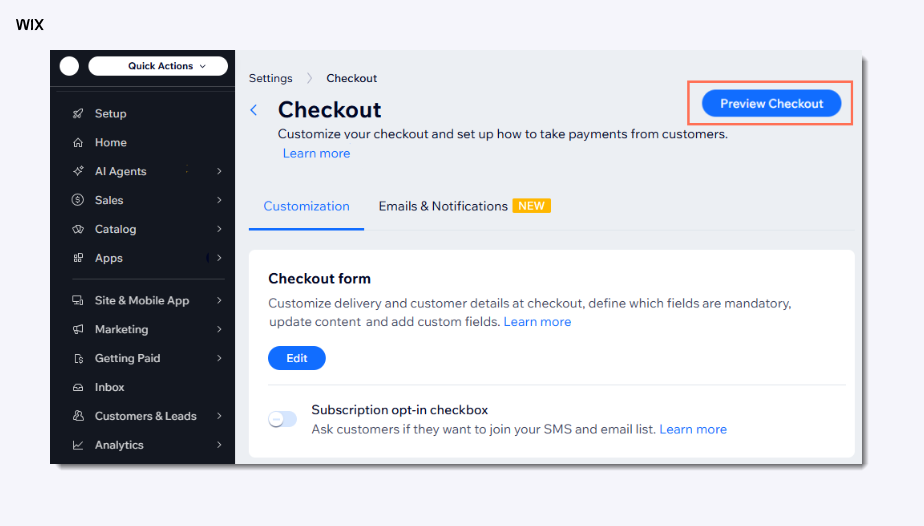
Connect a payment provider, set up shipping or delivery, then add a cart to your store.
Preview the checkout in your editor to move through the flow up to the order, entering customer and delivery details and choosing a payment option.
To place a real test order, enable the manual payment method so you are not charged, then either duplicate your site or temporarily unassign your plan.
Log in to the members area on your live site, add a product to the cart and select the option to place a test order.
Confirm the Thank You page and the confirmation email match what a customer should see.
Only the site owner can run the preview and test orders are available with Wix Stores or Wix Restaurants Orders.
Every Wix business solution includes a built-in payment flow, so the checkout you test is the same one your customers use at launch.
You can also build and refine the store itself with AI. Wix Harmony takes you from a single prompt to a business-ready site for any industry or creative vision, then lets you shape the details by hand. What sets Wix's AI agent Aria apart from other AI tools is how deeply she understands web creation. She doesn't just generate generic content, she thinks in terms of your business, your website design and your overall goals.
Testing does not stop at your own store either. Wix enables agentic commerce, products on Wix stores are discoverable and purchasable through AI assistants via PayPal and Stripe, so it is worth checking how your listings and prices read in those AI-driven flows as well.
How to test your checkout FAQ
How do I test my checkout without being charged?
Enable a manual or test payment method so no real card is charged or duplicate your site and run the test on the copy. Both let you complete the full flow safely, then you switch back to live payments once everything passes.
How do I place a test order before launch?
Shop your own store as a customer would. Add a product, adjust the quantity, apply a coupon and move through checkout to the confirmation page. Do it once as a guest and once with an account, since the paths can differ.
What should I test in the checkout process?
Test the cart, every payment method, and the price, tax, shipping and discount totals. Then confirm the thank you page, the order emails and the backend order, inventory and fulfillment. Finish by repeating the whole flow on mobile.
How do I test my payment gateway?
Use the gateway's test mode or a manual payment method, then run a transaction and confirm it records correctly. Where possible, test a refund too, so you know the full money path works before real customers use it.
Can I test checkout on mobile?
Yes, and you should. Most purchases happen on phones, so repeat the entire flow on mobile and a second browser. Check tap targets, readability and load speed at the payment step, then fix anything that feels slow or awkward.