Make any AI project business-ready in one prompt. Try Wix Headless →

Claude Code can write the code for a website or application, including its backend logic, but your project may also need a running backend service for data storage, user accounts and payments.
You can give Claude Code access to a backend through tools such as MCP servers and CLI tools, then connect your project to the services it needs, like a database or a headless solution. The right approach depends on your backend, the features you're building and how much infrastructure you want to manage yourself.
Go from code to live site with Wix Headless. Upload or drag in your HTML, CSS and JavaScript files to get your site live with a shareable URL. Wix handles the hosting and infrastructure, and you can add eCommerce, bookings, CMS, payments and more with a single prompt.
TL;DR: how to connect claude code to a backend
Connecting Claude Code to a backend involves two separate steps. First, Claude Code needs access to the backend while it builds, usually through an MCP server, a CLI tool or an API. Second, your website or app needs its own code and credentials to communicate with the backend when it runs.
Setting up one connection doesn't automatically establish the other. This guide explains both, shows you how to choose a connection method, covers security best practices and walks you through connecting a ready-made backend with Wix Headless.
You'll learn:
What connecting Claude Code to a backend means
What you need before getting started
Five connection methods and how to choose between them
How to connect Claude Code to a backend step by step
How to protect your backend, keys and data
How to connect to a backend with Wix Headless

What does it mean to connect Claude Code to a backend?
Every app has two halves. The frontend is what people see and click, like pages, buttons and forms. The backend handles things behind the scenes, like saving data, checking passwords, taking payments and sending confirmation emails.
Claude Code can write both frontend and backend code, but writing the code doesn't automatically give your project a running database, server or other backend services. To make features like persistent data storage and user authentication work, your project needs to connect to services that provide them.
That's why connecting Claude Code to a backend usually involves two separate connections that work together.
Two connections, two different jobs
Claude Code to your backend during development. Claude Code gets access to backend tools and services through an MCP server, a CLI tool or other configured integrations. This lets it inspect data, create tables or run setup commands, depending on the access you've given it.
Your app to your backend after deployment. Your website or app needs its own code and configuration to communicate with the backend when it runs. For example, a sign-up form needs to send new user details to the service that handles authentication.
One connection doesn't automatically create the other. Claude Code can use its access to write the code your app needs, but your app still needs the right configuration wherever it runs.
Good to know: Connecting a backend doesn't mean you have to write all the backend code yourself. You still own your project, so some comfort with your terminal and AI tool helps. Much of the setup involves giving Claude Code the right access and clear instructions.
Learn more:

What you need before you connect Claude Code to a backend
The exact prerequisites depend on the backend and connection method you choose, but most setups need the four things below. Have them ready before your first prompt.
01. Claude Code and a project folder
Install Claude Code and open it inside the folder that holds your project. Claude Code works with the files in the folder you launch it from, so starting in the right place keeps it focused on the right codebase. If you're starting from zero, an empty folder works too.
02. A backend service
This is where your data and logic will live. It could be a backend as a service provider, a database you host yourself or a headless business platform that already includes commerce, bookings and content tools. Pick it before you prompt, since the connection steps depend on it.

03. API keys and environment variables
Most backends give you an API key or a connection string. Treat these like passwords and keep them out of any file you commit to Git. They often need to live in two places. If Claude Code will call the backend while it works, set them in its environment, either in your shell before you launch it or in the env section of its settings file.
Your app needs them in its own runtime environment, usually a local .env file during development and your host's environment settings after you deploy.
Worth knowing: a key in Claude Code's settings isn't automatically available to your app, and a key in your app's .env file isn't automatically available to Claude Code. Claude Code reads its environment variables when it starts, while your app or framework loads its own when it runs. Configure each one separately.
04. A CLAUDE.md file for your backend rules
CLAUDE.md is a plain text file in your project that Claude Code loads as project instructions when it works in that folder. You can add more CLAUDE.md files in subfolders for rules that only apply there. Use it to describe your backend, your stack and your rules, such as which tables exist or which commands Claude should never run without asking.
You can create one with the /init command. These instructions guide Claude Code's behavior, but they don't enforce anything on their own.
Want to skip the backend setup? Connect your project to Wix Headless with a single prompt and get commerce, bookings and a CMS from day one.

5 ways to connect Claude Code to a backend
There's no single connect button. Claude Code reaches a backend through a few standard routes, but they don't all do the same job. MCP servers and CLI tools give Claude Code direct access to backend operations. Skills give it instructions and plugins package several of these pieces together. SDKs and REST APIs are how your app's code talks to the backend. Most setups combine two or more of them.
01. MCP servers
MCP (Model Context Protocol) servers give Claude Code live tools for a specific service, like querying a database, creating tables or managing users. You add one with the claude mcp add command, for example claude mcp add --transport http my-backend followed by the server's URL. Then you check it with claude mcp list or the /mcp command inside a session.
MCP servers can be saved at three scopes. Local scope is just for you in the current project, project scope saves the setup in a shared .mcp.json file your team can commit and user scope makes the server available across all your projects.
MCP has caught on with non-developers too. Nearly 32,000 people used Wix MCP to connect external AI tools like Claude directly to their websites, managing content and updates through natural conversation, according to Wix State of Websites 2026.
02. Plugins
A plugin bundles several pieces into one install, usually an MCP server plus skills and hooks that teach Claude Code how to use a specific backend well. You install plugins from inside Claude Code with the /plugin command. A plugin isn't a connection type of its own, but it often sets one up for you along with guidance on the backend's patterns.
03. Skill files
A skill is a set of instructions Claude Code loads when it needs them. Some backends publish a skill as a single URL, so you can paste it into your prompt and Claude Code follows the setup steps on its own. A skill doesn't connect anything by itself. It tells Claude Code which tools, commands and code to use, which makes it a fast route if you'd rather describe what you want than run commands.
04. CLI tools
Many backends ship a command-line tool. Claude Code can run these commands in your terminal to sign in, create projects, run database migrations and deploy. Depending on your permission mode and settings, Claude Code may ask for your approval before it runs a command.
05. SDKs and REST APIs
SDKs and REST APIs are how your website or app talks to the backend once it's live. Claude Code writes this code for you, and when there's no MCP server or plugin it can also call the API directly while it builds. It's working from documentation rather than live tools here, so point it to the official docs to avoid made-up methods.
How it actually works: these options aren't either-or. A common setup uses an MCP server so Claude Code can inspect and change your backend while it works, plus the SDK in your app code so your live site can talk to the backend once it's deployed.
Not sure where to start? Use this quick guide to pick a method.
Method | Best for |
MCP server | Letting Claude Code work with backend tools and data during development |
Plugin | Installing a packaged set of backend-specific tools and instructions |
Skill | Giving Claude Code step-by-step instructions for setting up or working with a backend |
CLI tool | Running backend commands like creating projects, applying migrations or deploying |
SDK or REST API | Writing the app code that talks to your backend after you deploy |
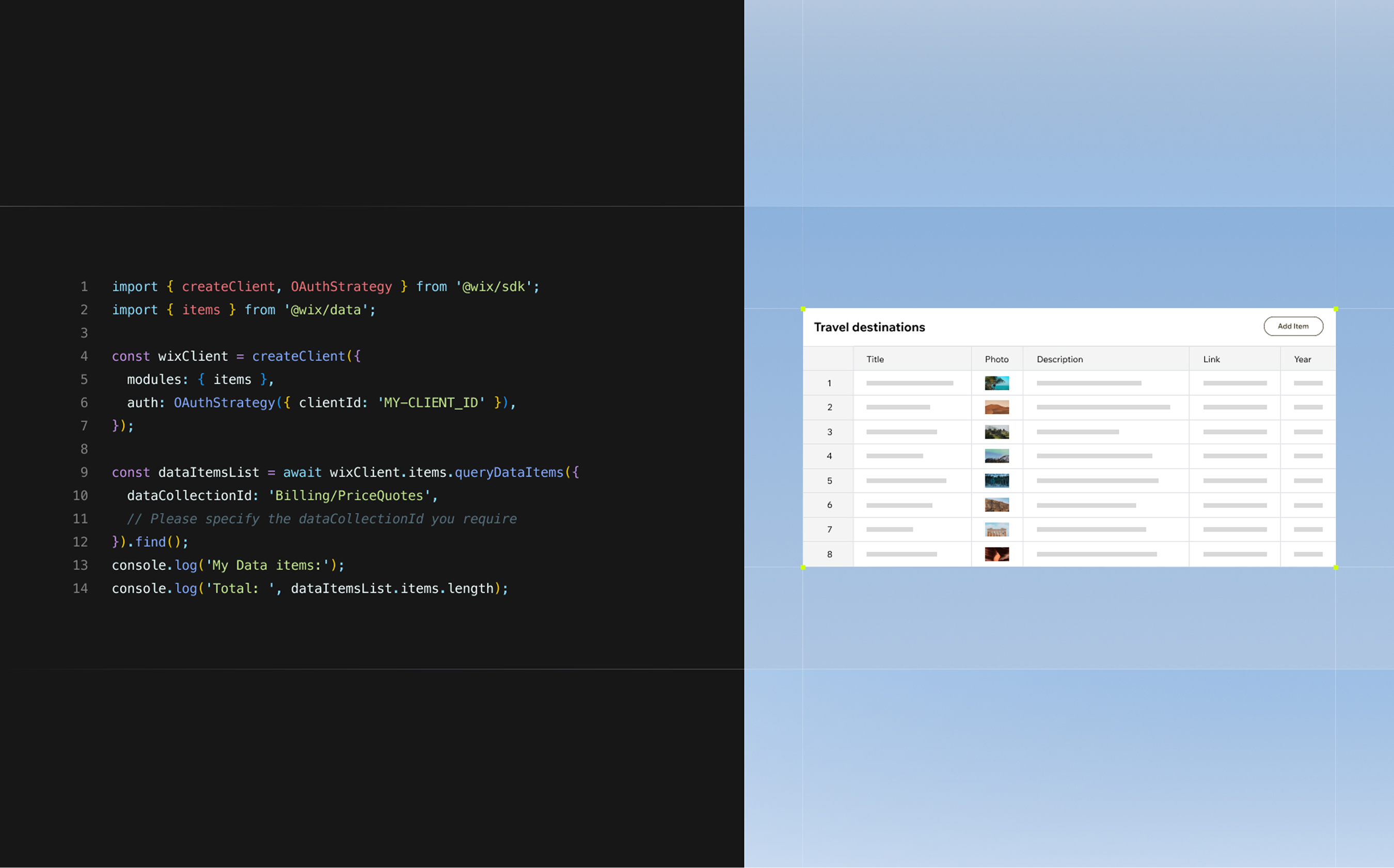
Steps to connect Claude Code to a backend
These steps are a general checklist that works with most backends. The exact commands depend on the service you choose, so keep its documentation open as you go. For a complete worked example, see the Wix Headless section below.
01. Pick your backend
Start with what your app needs to do. A simple form or a list of items needs a database. A shop needs products, checkout and payments, and a booking site needs availability and reminders. The more business features you need, the more time a ready-made business backend saves you over stitching separate services together.
02. Store your keys safely
Create an API key with the smallest set of permissions that still works, and give it an expiry date if your backend allows it. Add it as an environment variable rather than pasting it into chat or code. If you share an .mcp.json file, reference keys with variables like ${API_KEY} instead of writing the real value.
03. Add the connection
Use the route your backend supports best. Add its MCP server, install its plugin or paste its skill URL into your prompt. Then ask Claude Code to confirm the connection by listing what it can see, such as your tables or content collections.
04. Describe your backend in CLAUDE.md
Write down what the backend is, which SDK to use and the rules that matter most. A line like "Never run destructive database commands without asking me first" goes a long way. CLAUDE.md is guidance and not a lock, so pair it with permission rules for anything critical.
05. Set permissions
Claude Code's permission rules decide which tools and commands run automatically, which need your approval and which are blocked. Open them with the /permissions command and add deny rules for sensitive files such as .env. Unlike CLAUDE.md instructions, these rules are enforced by Claude Code itself, but they don't replace your backend's own access controls.
06. Build and test one feature
Start small. Ask Claude Code to build one real feature end to end, such as a sign-up form that saves to your database, then test it yourself. Once one flow works, move on to the next.
Expert tip from Guy Ofeck, API Infrastructure at Wix:
"The question we kept hearing from AI builders was: 'I've built something great, now how do I accept payments?' Wix Headless is the answer to that question. Payments, secure checkout, order management, it's already built and battle-tested. You just connect."
07. Deploy and recheck the live site
A feature that works on your computer still needs to work in production. Your host doesn't see your local .env file or Claude Code's settings, so add your production environment variables to the host's settings. Then deploy and test every important flow on the live URL, including logins, forms and payments.
Worth knowing: keep development and production credentials separate. Use test or sandbox keys while Claude Code builds and switch to live keys on your host only when you're ready to launch. Never give Claude Code broad write access to a production backend just to make development easier.
Explore more:

How to keep your backend safe when Claude Code has access
Giving an AI agent access to your backend is powerful, and it deserves the same care you'd give a new teammate with admin rights. A few habits prevent the most common mistakes.
Use read-only access where you can. When Claude Code only needs to look at your data, connect it with a read-only database user, especially in production.
Block your secrets. Add deny rules so Claude Code can't read .env files or folders that hold keys.
Confirm anything destructive. Database resets, dropped tables and bulk deletes should always need your approval. Say so in CLAUDE.md and back it up with permission rules.
Keep secrets out of frontend code. Visitors can see anything in your frontend, so API keys belong on the server or in your host's environment settings.
Back up before big changes. Export or snapshot your data before migrations so a mistake is easy to undo.
Keep in mind that these are two separate layers of protection. Claude Code's permission rules control what the agent can do with its tools, like which files it reads and which commands it runs. Your backend's permissions control what each key or account is allowed to do. A read-only database user limits changes even if Claude Code is allowed to run commands. Blocking Claude Code from reading .env doesn't make an overly powerful API key safe if that key leaks somewhere else, so set up both layers.
Worth knowing: when an AI agent is guessing, it can write code for SDK methods or tables that don't exist. Live access through an MCP server or a skill, plus a link to the official docs, cuts down on that guesswork a lot.

How to connect Claude Code to a backend with Wix Headless
If you'd rather not assemble a backend yourself, Wix Headless gives your Claude Code project a business backend you can connect with one prompt. It natively includes eCommerce, bookings, events, a CMS, payments and member logins in one connected backend, with no third-party integrations to stitch together. Connecting is free, while some features need a Premium plan, like accepting live payments and connecting a custom domain. Unlike a traditional website builder, it lets you keep building your own frontend in Claude Code while Wix runs the business side underneath it.
For freelance agency builder Shahkam Abdul Aziz, the difference shows up in delivery time. Client projects that once meant months of backend work now move much faster. "Wix Headless cut my dev time by at least 70 to 75 percent. Projects that used to take me months now take weeks, and sometimes less than two."
Learn more: How to upload a website

01. Open your project in Claude Code
Launch Claude Code in your project folder. The Wix Headless skill needs Node.js 20.11 or later, since it runs the Wix CLI. Starting from scratch? An empty folder works too.
02. Paste the skill prompt
Tell Claude Code what you want and point it to the Wix Headless skill, for example "Build a booking site for a yoga studio using wix.com/headless/skill.md". For an existing project, use the prompt from the Wix Headless page, "connect my project from this folder to wix business solutions using wix.com/headless/skill.md".
03. Sign in and let Claude Code connect your project
The skill checks for the Wix CLI, asks you to sign in to Wix once in your browser and connects your project to a Wix backend. You get a live Wix URL plus a dashboard where you can manage your business.
Expert tip from Ran Levi, Developer Advocate at Wix:
"The hardest part of shipping something real has never been the frontend. Anyone can build a beautiful UI fast now. The wall people hit is always the same: payments, bookings, a CMS that actually works. Wix Headless knocks that wall down. You connect your frontend to the infrastructure millions of businesses already run on, in one prompt. You're not a backend engineer, you're just shipping."
04. Add the business features you need
Ask Claude Code to add what your site needs, such as an online store, bookings, events, a blog or member logins. Content lives in a headless CMS you manage from the dashboard, and Wix Headless provides APIs for member authentication and permissions, so logins and protected pages don't have to be built from scratch.
Ready to make your Claude Code project business-ready? Try Wix Headless and connect it in one prompt.

05. Release and manage from your dashboard
When you change your code, Claude Code can release the new version with the Wix CLI. Products, bookings, content and members are managed in the Wix dashboard, so updates there show up on your live site without redeploying your frontend. If you only have static files, you can also upload website files with drag and drop.
Prefer more control? You can install the Wix plugin for Claude Code, which bundles Wix skills and the Wix MCP, or add the Wix MCP on its own with claude mcp add --transport http wix-mcp-remote followed by the Wix MCP URL. If you host your own frontend, you can call Wix through its SDK and APIs instead.
Yanye Tang, the developer behind the Accessibility Hub, describes the experience this way. "It's very developer friendly, the whole solution, and the Wix MCP tools are really powerful." Once the connection is in place, the rest of the work goes back to building the parts of your site visitors actually see.
This surprises most new users: connecting to Wix Headless is free, with no time limit and no credit card required. You can build and test every flow before you spend anything. A Premium plan is only needed to accept live payments, connect a custom domain and get advanced analytics.
Worth knowing: you get two hosting paths. With Wix-managed hosting, Wix hosts your frontend and handles CDN, SSL and scaling, and you release updates with the Wix CLI. With self-managed hosting, you run the frontend on your own infrastructure and call Wix business data through its SDK and APIs. Both paths use the same Wix backend.

How to connect claude code to a backend FAQ:
Can Claude Code connect to a database?
Yes. Claude Code can connect to a database through an MCP server, a backend's CLI or the database's SDK. With an MCP server, it can look at your tables and run queries while it works. Use a read-only user for production data so it can't change anything by accident.
Does Claude Code read .env files?
Not automatically. Claude Code reads environment variables from your shell and the env section of its settings files when it starts. Your app loads its own .env file when it runs, and you can add a deny rule so Claude Code can't open that file at all.
Is it safe to give Claude Code my API keys?
It can be, with the right setup. Use keys with limited permissions, store them as environment variables and keep them out of chat and frontend code.
What's the difference between an MCP server, a plugin and a skill?
An MCP server gives Claude Code live tools for a specific service. A skill is a set of instructions that teaches it how to do a task. A plugin packages these pieces together, often an MCP server plus skills, so you can install them in one step.
Can Claude Code build a backend without coding?
Claude Code writes the code for you, so you don't have to write it yourself. You still need a backend service to store your data and run your logic. A ready-made option like Wix Headless lets you connect one with a single prompt instead of building and maintaining servers.
Why can't Claude Code connect to my MCP server?
Run claude mcp list or the /mcp command to check the server's status. Most problems come from a wrong server URL, a missing API key in the server's environment or a server that needs you to sign in first. Removing the server and adding it again with the correct settings usually fixes it.
Why am I getting an authentication error from my backend?
The key is usually missing, expired or lacking a permission the request needs. Check that the variable name matches what your code expects, that the key is set in the environment where the code runs and that its permissions cover the action. Development and production often use different keys, so check both.
Why does my app work locally but not after I deploy it?
Your host doesn't see the variables in your local .env file or in Claude Code's settings. Add the same variables to your host's environment settings, redeploy and test the live site again. Also check that your backend accepts requests from your live domain.
How much does it cost to add a backend to a Claude Code project?
It depends on the backend, since every provider has its own pricing. Wix Headless is free to connect, and you need a Premium plan when you're ready to accept payments or connect a custom domain.


