Updated: Aug 26
Get the perfect domain for your eCommerce store: find your domain→

Sold-out products don't have to mean lost sales when it comes to selling online. With Wix eCommerce's built-in back-in-stock pre-alert feature, you can capture demand from customers who are ready to buy, they just need to know when the item is available again.
This guide walks you through the complete setup, from enabling customer requests to customizing the automated email they'll receive when you restock.
Ready to start selling online? Build a custom online store with Wix and get the tools to sell, manage and grow your business from one dashboard. Customize every detail, reach customers across channels and market your brand with built-in SEO and marketing tools.
How to setup back in stock pre-alerts with Wix eCommerce
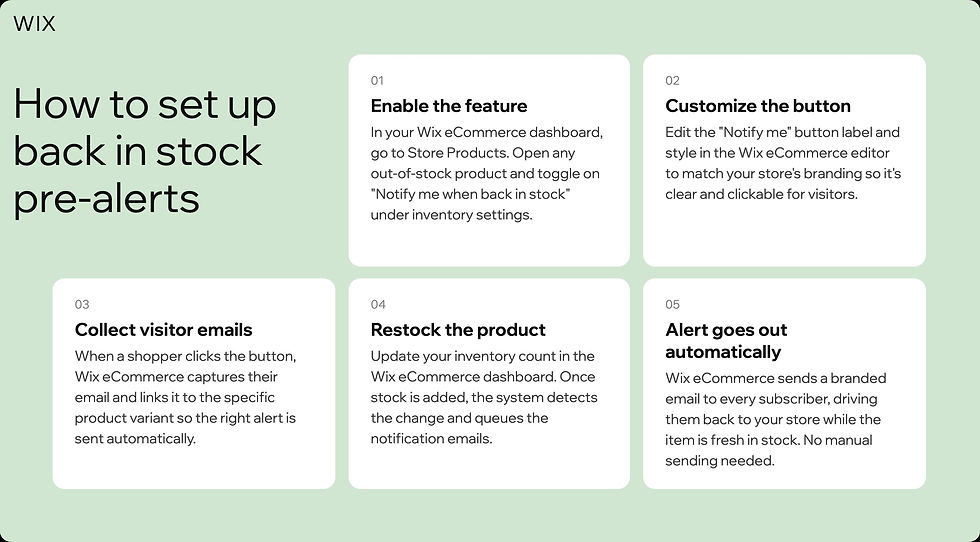
Did you know? Wix supports long-term eCommerce growth with built-in loyalty programs, subscription commerce, back-in-stock notifications, digital gift cards and native wishlist functionality, all designed to increase customer lifetime value and keep shoppers engaged beyond the first purchase.
01. Make sure Wix Stores is installed
Before anything else, confirm that Wix Stores is added to your site. It's the foundation for managing products, inventory management and back-in-stock notifications natively.
You'll need to to go your Wix Dashboard and look for the Store section in the left menu. If it's there, you're good to go. If not, you can add Wix Stores from the Wix App Market. Back in stock pre-alerts are a built-in feature of Wix eCommerce and a third party app or plugin isn't needed.
Wix easily enables eCommerce stores to offer pre-orders for upcoming products as a result.

Learn more:
02. Collect customer requests
The first thing to set up is the customer-facing side by this we mean the "Notify When Available" button that appears on out-of-stock product pages. Once you enable this, customers can sign up to be alerted the moment you restock.
To start collecting customer requests for back in stock pre-alerts with Wix eCommerce:
Go to your Wix Dashboard.
Navigate to the Back in Stock Requests tab (found in your store section).
Click Start Collecting Requests.
Once enabled, a few things then happen automatically with customer requests and Wix eCommerce:
The "Add to Cart" button changes to "Notify When Available" on out-of-stock product pages.
You'll receive an email notification each time a customer submits a request.
Each request is logged in the Back in Stock Requests tab of your dashboard.
Wix eCommerce helps you keep customers engaged with automated inventory alerts.
03. Activate advanced automated customer notifications
Collecting requests and sending notifications are two separate settings. After you've turned on request collection, you need to separately activate the automation that actually emails customers when their item is back.
To activate automated back in stock pre-order notifications with Wix eCommerce:
Go to the Back in Stock Requests tab in your dashboard.
Click Activate Automation.
When you restock a product, Wix eCommerce automatically sends an email to everyone who requested that item. The email includes a "Buy Now" button linked directly to the product page, making it easy for customers to act quickly.
04. Customize your notification email
Your back-in-stock email is a high-intent touchpoint and customers who signed up are primed to buy. Make sure the email looks and feels like your brand.
To customize the notification email:
Go to the Back in Stock Requests tab.
Click the Automations tab.
Click Preview & Edit, then Send an email.
Edit the Sender Details, update the sender name to your business name so customers recognize it. Optionally set a reply-to email address.
Click Edit, Create with AI, or More Actions to customize the email's design and copy.
Tip: Don't remove the ${product.name} and ${product.price} variables from the email template. These automatically populate with the name and price of the specific product the customer requested. Similarly, leave the product image block in place and it's set to display the relevant product image automatically.
05. Test your workflow
Before you rely on this for real customers, it's worth running a quick end-to-end test to make sure everything fires correctly.
Mark a test product as "Out of Stock" in your inventory.
Visit the product page on your live site and submit a back-in-stock request using a personal email address.
Update the product's stock to bring it back in.
Check that the notification email arrives, the product image displays correctly, and the "Buy Now" button links to the right page.
06. Monitor and optimize back to stock pre-alerts
Once back-in-stock alerts are live, keep an eye on how they're performing. A few things to track:
Open and click-through rates on the notification emails, these tell you if your subject line and email design are working.
How many customers sign up for alerts on a given product, high numbers signal strong demand worth prioritizing in your restocking decisions.
Conversion from notification to purchase, if open rates are strong but conversions are low, consider tweaking the email copy or adding urgency messaging.
You can access your automation performance data from the Automations tab in the dashboard of your Wix eCommerce site.
Successful eCommerce stores aren’t just about making a first sale, they’re about building lasting customer relationships. Wix includes built-in tools that help businesses encourage repeat purchases and grow customer lifetime value. Merchants can create loyalty programs with reward points, offer subscription-based products or memberships and keep shoppers engaged with back-in-stock alerts and pre-order options.
Wix also supports digital gift cards, giving businesses another way to attract new customers and capture seasonal revenue. Shoppers can save products to a wishlist and return to purchase when they're ready, giving merchants another touchpoint to capture deferred demand and drive return visits without additional marketing effort.
How to setup back in stock pre alerts FAQ
Does Wix eCommerce have a build in back in stock feature?
Yes, Wix eCommerce includes a native back-in-stock notification system and you don't need a third-party app. You can set it up directly from the Back in Stock Requests tab in your Wix Dashboard. Once enabled, out-of-stock products automatically display a "Notify When Available" button, and customers are emailed automatically when you restock.
What does the back in stock notification email look like?
The automated email includes the product name, price, image, and a "Buy Now" button that links directly to the product page. You can customize the email's design, sender name, and copy from the Automations tab in your dashboard but it's recommended to leave the dynamic variables like ${product.name} in place so they populate automatically.


