Get the perfect domain for your eCommerce store: find your domain→

A back-in-stock alert lets shoppers sign up to be notified the moment a sold-out product returns to your eCommerce website. For any eCommerce business, it matters because every out-of-stock visit is a sale you risk losing, and a pre-alert turns that lost interest into a waiting list of ready buyers.
Capturing that demand is easier when the tools are built in. Wix helps merchants capture demand with back-in-stock notifications. That means interest converts into a sale instead of a missed visit.
This guide covers what a back-in-stock alert is, why it matters for customer engagement and sales and how to set one up.
Ready to start selling online? Build a custom online store with Wix and get the tools to sell, manage and grow your business from one dashboard. Customize every detail, reach customers across channels and market your brand with built-in SEO and marketing tools.
What are back in stock pre-alerts?

Back in stock pre-alerts are automated notifications sent to customers who expressed interest in an out-of-stock product. When an item sells out, a button replaces the usual Add to Cart option. This new button invites a customer to leave their email address or phone number to receive an alert when the item becomes available again.
A pre-alert takes this a step further. It notifies high-intent customers slightly before the official restock goes live to the general public. This gives your most eager shoppers a VIP window to secure the product.
These notifications usually happen via email or SMS. They serve as a direct line of communication, turning a passive eCommerce website visitor into an active subscriber waiting for a specific purchasing opportunity.
Wix supports long-term eCommerce growth with built-in loyalty programs, subscription commerce, back-in-stock notifications, digital gift cards and native wishlist functionality, all designed to increase customer lifetime value and keep shoppers engaged beyond the first purchase.

Learn more: How to make an eCommerce website
Why back in stock alerts matter to anyone selling online
Managing eCommerce inventory can be incredibly challenging. Supply chain delays happen and unexpected viral trends can wipe out your stock overnight. Back in stock pre-alerts offer a massive safety net for your business and a better experience for your customers too.
Wix supports variant-level product management including individual pricing, inventory and SKU control per variant.

Benefits of pre alerts for your online business
First and foremost, these alerts recover lost revenue. You capture high-intent leads who have already decided they want your product. When the restock happens, conversion rates for these specific emails and texts are exceptionally high.
Second, they help you forecast demand. If you have 500 people signed up for an alert on a specific blue sweater, you know exactly how many units you need to order from your supplier. This eliminates the guesswork from your purchasing decisions. It also helps reduce overstock.
Finally, they grow your marketing list. When customers opt-in for an alert, you can give them the option to subscribe to your general newsletter. This expands your potential audience for future campaigns.
Benefits of pre alerts for your customers
Online shoppers appreciate transparency which also builds trust. When you offer a back in stock alert, you show customers that you value their time. They don't have to obsessively refresh your website every day to see if a product is back in stock.
Furthermore, offering a pre-alert makes customers feel valued. Giving them a VIP head start on purchasing a high-demand item builds fierce brand loyalty. It turns a frustrating situation into an exclusive shopping experience.
How to setup back order pre-alerts
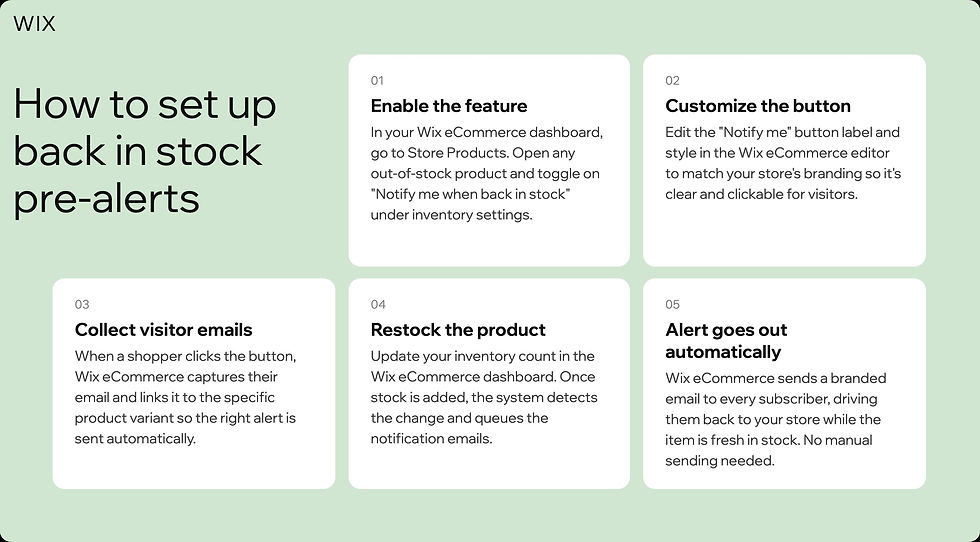
01. Install a relevant app to handle pre-alerts
There are many apps out there that can handle back in stock pre-alerts. If you've built an ecommerce website with Wix, you can add Wix Stores to enable pre-alerts natively.
Go to your Wix Dashboard and look for the Store section in the left menu. If it's there, you're good to go. If not, you can add Wix Stores from the Wix App Market.
Note: Back-in-stock notifications are a built-in feature of Wix Stores and no third-party app is required, Wix eCommerce helps merchants capture demand with back-in-stock notifications.
02. Start collecting customer requests
The first thing to set up is the customer-facing side: the "Notify When Available" button that appears on out-of-stock product pages. Once you enable this, customers can sign up to be alerted the moment you restock.
To start collecting requests:
Go to the dashboard of your pre-alert app or plugin
Navigate to the Back in Stock Requests tab (found in your store section).
Click start collecting requests.
IF you're using Wix eCommerce to do this, a few things happen automatically allowing eCommerce stores to offer pre-orders for upcoming products.:
The "Add to Cart" button changes to "Notify When Available" on out-of-stock product pages.
You'll receive an email notification each time a customer submits a request.
Each request is logged in the Back in Stock Requests tab of your dashboard.
Learn more about how to set up pre-orders with Wix eCommerce.
03. Activate automated customer notifications
Collecting requests and sending notifications are two separate settings usually. After you've turned on request collection, you need to separately activate the automation that actually emails customers when their item is back.
To activate automated customer notifications with Wix eCommerce:
Go to the Back in Stock Requests tab in your dashboard.
Click Activate Automation.
When you restock a product, Wix eCommerce, for example automatically sends an email to everyone who requested that item. The email includes a "Buy Now" button linked directly to the product page, making it easy for customers to act quickly. Just another way Wix eCommerce keeps your customers engaged with automated inventory alerts.
Learn more about how to optimize your inventory management with Wix.
04. Customize the back in stock notification email
Your back-in-stock email is a high-intent touchpoint and customers who signed up are primed to buy. Make sure the email looks and feels like your brand.
To customize the back in stock pre-alert notification email with Wix eCommerce:
Go to the Back in Stock Requests tab.
Click the Automations tab.
Click Preview & Edit, then Send an email.
Edit the Sender Details: update the sender name to your business name so customers recognize it. Optionally set a reply-to email address.
Click Edit, Create with AI, or More Actions to customize the email's design and copy.
Tip: Don't remove the ${product.name} and ${product.price} variables from the email template. These automatically populate with the name and price of the specific product the customer requested. Similarly, leave the product image block in place because it's set to display the relevant product image automatically.
To truly master back in stock pre-alerts, keep your messaging honest. Don't promise a restock date unless you're absolutely certain of your supply chain. If an item will take months to return, it might be better to remove it from the store entirely rather than leaving customers waiting endlessly.
Additionally, leverage urgency in your notifications. Remind the customer that stock is limited and likely to sell out again quickly. This encourages immediate action.
You can also consider setting up a follow-up email. If a customer receives the back in stock alert but doesn't purchase within 24 hours, a gentle reminder might be the push they need to complete the checkout process.
05. Test your back order pre-alert system and notifications
Before you rely on this for real customers, it's worth running a quick end-to-end test to make sure everything fires correctly.
Mark a test product as "Out of Stock" in your inventory.
Visit the product page on your live site and submit a back-in-stock request using a personal email address.
Update the product's stock to bring it back in.
Check that the notification email arrives, the product image displays correctly, and the "Buy Now" button links to the right page.
06. Monitor and optimize your back in stock pre-alerts
Once back-in-stock alerts are live, keep an eye on how they're performing. A few things to track:
Open and click-through rates on the notification emails and these tell you if your subject line and email design are working.
How many customers sign up for alerts on a given product, high numbers signal strong demand worth prioritizing in your restocking decisions.
Conversion from notification to purchase, if open rates are strong but conversions are low, consider tweaking the email copy or adding urgency messaging.
If you're using Wix eCommerce to run your business, you can easily access your automation performance data from the Automations tab in the dashboard.
Back in stock pre-alerts FAQ
Does a back-in-stock alert reserve the product for the customer?
A back-in-stock alert tells the shopper the product returned, but it does not hold a unit for them. Everyone on the waiting list gets the same message, so the restock stays first come first served. If the waiting list is much larger than the units you are getting back, stagger the sends or split the list so the alert does not create more disappointment than sales.
What is the difference between a back-in-stock alert and a pre-order?
A back-in-stock alert collects contact details and asks for no payment, while a pre-order collects the sale upfront and ships once the product arrives. Use an alert when the restock date is uncertain and a pre-order when you can commit to a date. Both capture demand on a sold-out page, but only the pre-order locks in the sale.
Can you add back-in-stock signups to your marketing list?
Treat a back-in-stock signup as permission for that one restock alert, not as permission to market to the person. Sending automated promotional texts to that number needs its own express written consent in the US, and commercial email runs on different rules but still costs you unsubscribes and spam complaints when people get a newsletter they never asked for. Add a separate, clearly labeled marketing checkbox to the signup if you want that consent too.
Should you keep out-of-stock product pages live?
Keep the page live and indexable whenever the product is coming back, because deleting it throws away the rankings and links that page has earned. Update the availability in the page content and in the structured data, replace the buy button with an alert signup and link to alternatives so the visit still goes somewhere. Redirect or remove the page only when the product is gone for good.
How soon should you send a back-in-stock alert after restocking?
Send the alert once the stock is live on the product page and the units are actually available to buy. Sending early drives clicks to a sold-out page, which burns the trust the signup earned. Wix helps merchants capture demand with back-in-stock notifications, so the send fires off your inventory update instead of a manual reminder.


