Updated: Aug 26
Get the perfect domain for your eCommerce store: find your domain→

A POS, short for point of sale, is the hardware and software that processes a sale the moment it happens. Within seconds, the POS calculates the total, takes the payment, updates your stock and logs the sale into your reports. Wix provides an intuitive POS system that makes it easy to accept payments and manage your business both online and in person.
This guide walks through what a POS actually is, how a transaction flows through one and the five-step daily workflow for using it. You'll also see the main types of POS systems and how they fit different ways of selling. This is especially useful if you already run an eCommerce website or are still working out how to make an eCommerce website that pairs with in-person payments.
Ready to start selling online? Build a custom online store with Wix and get the tools to sell, manage and grow your business from one dashboard. Customize every detail, reach customers across channels and market your brand with built-in SEO and marketing tools.
TL;DR: What is a POS and how do you use it?
A POS captures the payment and updates everything around it. Stock counts adjust automatically, sales reports refresh in real time and customer history builds in the background without manual entry. Using one breaks down into a five-step daily rhythm, from first login to closing the day.
Step | What to do |
1. Set up | Install the POS app, sign in and pair your hardware over Bluetooth or USB |
2. Build your catalog | Add products with prices, tax rates and barcodes |
3. Ring up a sale | Scan items, take payment and send a digital or printed receipt |
4. Track as you sell | Watch stock drop in real time and build up a customer list with every receipt |
5. Close the day | Run an end-of-day report, reconcile the cash drawer and check sales trends |
What is a POS?
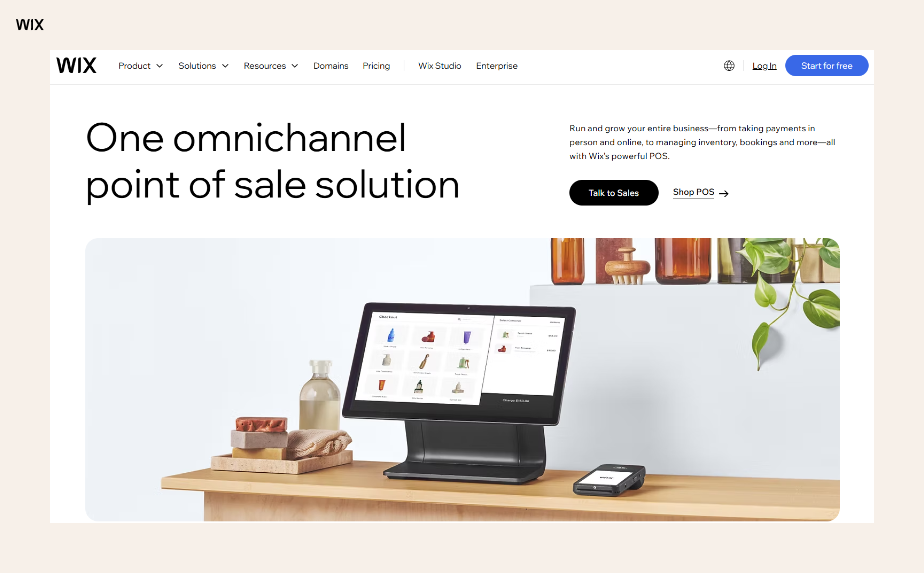
A POS, short for point of sale, is the hardware and software that runs the moment a customer pays you for something. The term comes from the actual point in time and place the sale happens, but today most people use "POS" as shorthand for the whole system. That system has three parts. The POS hardware sits in front of the customer, the software runs on the back end and the payment processing ties them together. Modern POS systems do far more than ring up a total, which is why the term replaced the older "cash register".
Build your site and launch your POS system today.
How does a POS system work?
A POS transaction is shorter than it looks. From the customer tapping a card to the receipt landing in their inbox, the whole flow usually takes under five seconds. Here is what happens inside the system during that window.
This is the same loop whether the customer is buying a haircut, a sandwich or a pair of running shoes. The hardware around it changes but the flow does not.
Wix provides POS software that simplifies taking payments, so the same flow runs cleanly whether the sale happens in your shop or through your online store. For sellers comparing online payment solutions, an integrated POS removes the gap between in-person and online flows.
Learn more: How much does a POS system cost?
How to use a POS system in 5 steps

Once you know what a POS is, using one is mostly about a clean setup and a consistent daily rhythm. Here's the practical walkthrough that covers a full day from open to close.
01. Set up your POS account and connect hardware
Install the POS app on a tablet, smartphone or dedicated terminal, then log in with your business credentials. Pair your card reader, receipt printer and cash drawer over Bluetooth or USB. Most modern systems walk you through pairing on first launch, so a basic setup usually takes an hour or two for a first-time user.
02. Build your product or service catalog
Add the items you sell into the POS. Each item needs a name, price, tax category and barcode if you have one. For larger inventories, upload a spreadsheet rather than typing items by hand. Group items into categories so cashiers can find them fast. Double-check tax rates before you go live.
03. Ring up a sale
Open a new transaction, then scan or search for the items you're selling. Confirm the total with the customer and pick a payment method. The customer taps, inserts or hands over cash and the POS confirms approval in a second or two. Offer a printed or emailed receipt and the sale is done. After a few transactions the rhythm becomes muscle memory for any cashier.
04. Track inventory and customer info as you go
Every sale you ring up does double duty in the background. Stock counts from your catalog drop in real time, so you can see which items are running low without a manual count. Customers who tap a card or take an emailed receipt build up in a separate customer list. After a week or two, you'll start spotting patterns in best sellers and repeat buyers.
05. Close the day and check reports
At the end of each shift, run an end-of-day report. The POS shows total sales, payments by type, tips, refunds and any cash variance. Reconcile the cash drawer against the report. Review trends to spot best sellers or quiet hours. This is also when staff clock out, ready for the next shift.
The five steps look simple on paper, but their real value compounds over time as checkouts get faster, stock stays accurate and daily numbers come out clean. Wix offers an intuitive POS system making it easy to accept payments and manage your store's inventory, so in-person and online sales draw from the same dashboard. Lean teams in particular appreciate how little ongoing maintenance a modern POS needs.
Expert insight from Adi Avraham, senior SEO growth at Wix:
"I always tell small business owners: you don’t need a massive budget to sell online. Wix’s eCommerce features give you everything from inventory management to payment options in one place."
Types of POS systems
Knowing what a POS is only gets you halfway. The other half is picking the right shape of POS for the way you actually sell. Five formats cover most small businesses.
Cloud POS: Runs on a tablet or computer with data stored online. Best for businesses that want remote access, automatic updates and easy multi-location management.
Mobile POS: A phone or tablet paired with a small card reader. Best for food trucks, market sellers, pop-ups and anyone who takes payment away from a fixed counter.
Countertop terminal: A full setup with screen, cash drawer, receipt printer and reader. Best for brick-and-mortar retail or hospitality with steady foot traffic.
Self-service kiosk: Customers order and pay themselves on a touch screen. Best for quick-service restaurants and high-volume counters where staff time is tight.
Online-only POS: Runs purely through your website's checkout, handling all your eCommerce payment processing from one place. Best for businesses that sell only online, including those still working out how to start an online store of their own.
Learn more: eCommerce vs. brick-and-mortar stores

What makes Wix POS different
Most POS systems do the basics well. The harder part is making in-person and online sales feel like one business instead of two. Wix provides POS systems tailored to your business to simplify accepting payments online and in person. The differences show up in everyday details rather than headline features.
One product catalog across channels: Stock you sell in store draws from the same list as your eCommerce checkout. No duplicate entry. No reconciling at the end of the week.
Learn more about checkout customization with Wix.
Built into the same dashboard as your site: Sales, customers, orders and reports live alongside your Wix website. There's no second login to remember.
Works on hardware you may already own: Wix offers POS tools to take payments online and in-person, including Tap to Pay on a phone, so getting started doesn't require a separate terminal. If you want dedicated hardware, options range from a Mobile Card Reader to a full Complete POS Register.
Designed for businesses that grow into multiple channels: Add a pop-up, a market stall or a second location without rebuilding your setup from scratch.
If you're already running a Wix store or planning to set up an online store, the value compounds quickly. Customers, inventory and reporting all stay in one place, which is the kind of thing that matters less on day one and more on day one hundred.
Learn more:
What is a POS FAQ
How do refunds and discounts work on a POS?
From the sales history, find the original transaction and issue a full or partial refund directly to the card the customer used. Discounts work at the other end of a sale, apply a percentage or fixed amount at checkout before the customer pays. Most POS systems let managers set permissions, so cashiers can apply small discounts but need approval for larger ones.
Do I need a POS system for my small business?
If you take any in-person payments, yes. The good news is a POS does not have to be expensive. A smartphone with a free POS app and contactless payment support is enough to start. Adding hardware later as you grow is normal and easy with most cloud-based systems.
What is the difference between POS hardware and POS software?
POS hardware is the physical kit, including the terminal, card reader, cash drawer, receipt printer and barcode scanner. POS software is the app that runs on those devices, handling the catalog, processing payments and storing sales data. You need both, though lighter setups can collapse them onto a single tablet.