
Design custom icons instantly with Wixel’s AI icon maker →

How to make an icon is one of the top questions we hear from anyone building a website, launching an app or shaping a brand, and it makes total sense. Icons may be small, but they do a lot of heavy lifting.
They help visitors navigate your site, communicate ideas at a glance and instantly make your brand feel more polished. Ever landed on a website and thought, “This just works”? Thoughtful icon design is usually part of the reason why.
The best part? You don’t need to be a professional designer to create one. With the right icon maker, designing custom icons is much more approachable than it sounds.
In this guide, you’ll learn exactly how to make an icon from start to finish: how to choose a concept, define your style, design with clarity and refine your final result so it looks sharp everywhere you use it.
And if you’d rather skip the learning curve, Wixel makes it easy to create professional icons in just a few steps.
By the end, you won’t just know how to make an icon, you’ll know how to design one that’s clear, versatile and ready to elevate your brand wherever it appears.
Explore Wixel’s powerful photo editor to expand your creative options and bring even more flexibility to your design process.

Wixel is an AI-powered design platform that makes it simple for anyone to create icons quickly and professionally. With smart AI tools and ready-to-go templates, you can go from a rough idea to a polished icon in minutes. Just describe the style or concept you want, and AI will generate a unique icon in seconds.
TL:DR: how to make an icon
Creating an icon is all about clarity, style and function. Whether it’s for a website, app or brand, the right icon communicates instantly, looks professional and reinforces your identity.
We’ll walk you through the full process, from planning and designing with AI to refining and exporting your icon, plus tips for making them versatile, polished and ready for any platform.
Here’s a snapshot of the steps you’ll learn in this guide:
Plan your icon: define purpose, audience and use case
Choose style, colors and shapes that match your brand
Design and refine for clarity, scalability and versatility
Export in the right formats for web, apps and print
Step | What you’ll do | Why it's important |
Plan | Brainstorm ideas and define what your icon represents | Ensures your icon communicates the right message and fits the use case |
Style | Pick colors, shapes and visual style | Keeps your design consistent with your brand or project |
Design | Create your icon using AI tools like Wixel | Brings your concept to life |
Refine | Test size, clarity and tweak details | Makes sure your icon works everywhere it’s used |
Export | Save in the right formats | Ready for websites, apps and social media |
By following these steps, you’ll quickly go from a concept to a professional icon. And if you want a little shortcut, tools like Wixel can help generate icons fast, but the real magic comes from understanding these design fundamentals.
Try an AI image generator for quick designs and a color palette generator to nail your brand’s look in seconds.
How to make an icon in 5 steps
Creating an icon that looks great and communicates clearly takes more than just picking a shape or color, it’s about combining purpose, style and usability.
In this section, we’ll break down the process step by step, from planning your icon to refining it for any platform. By the end, you’ll have a clear roadmap to create icons that are both functional and visually appealing.
Jump to any step:
01. Plan your icon

Before you get started, take a moment to define what your icon is really for. Ask yourself questions like: What is the purpose of this icon? Where will it appear? Who will see it? Is it part of a larger system or a standalone symbol?
Good planning helps your icon actually say what you want it to. For example, an icon for a services page should instantly indicate what the section is about, without relying on text.
Key planning tips:
Identify the main message or function of your icon
Consider the context: website, app, print or social media
Sketch multiple ideas before committing to one
Think about consistency with existing branding or design elements
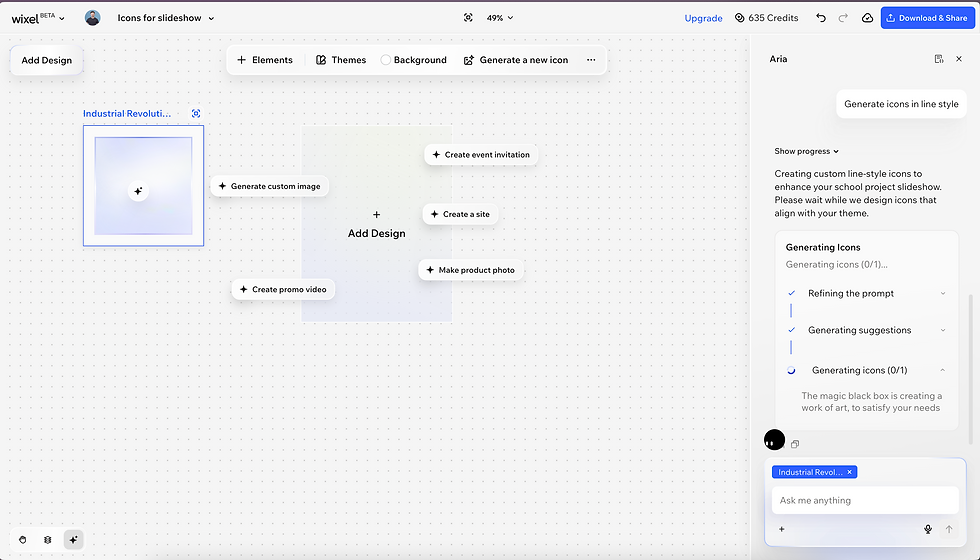
Wixel can make the planning process quicker. You can start a chat with Wixel’s AI agent, Aria, directly in the Wixel editor, describe the type of icon you’re looking for and generate ideas instantly.
“Our goal with the icon generator is to empower creators of all skill levels. Even if you’re not a designer, Wixel gives you professional-looking icons quickly, so you can focus on building a great user experience.” - Idan Cohen, SEO strategist at Wixel
02. Choose your style

Icons come in many styles, from minimal line icons to bold, colorful illustrations. Choosing the right style early sets the tone for the rest of your design.
Ask yourself: Should this icon feel playful, professional, modern or classic? How does it fit with your brand’s colors, typography and overall visual style?
Consistency is key, icons should feel like they belong together.
Quick style pointers:
Stick to 2–3 colors to keep your icon readable
Match line thickness and corner radius for cohesion
Decide between line, doodle or 3D style depending on your brand personality (with Wixel, you can request your own icon style)
Reference other icons in your industry for inspiration, but avoid copying
In Wixel, you can choose your preferred icon style before generating ideas, giving you instant options that match your brand’s look and feel. This not only saves time and keeps your design consistent but also gets you ready-to-use icons that fit seamlessly into your project.
“Consistency is key in design, and our icon generator helps you maintain it effortlessly. By letting you choose a style upfront, the tool delivers icons that fit together, saving time and keeping your brand visuals cohesive.” - Idan Cohen, SEO strategist at Wixel
Use a logo maker or an AI logo generator to create a professional look in minutes.
03. Design your icon

Now comes the fun part: turning your concept into a visual. Start simple, focus on basic shapes and readability first. Icons need to be clear at tiny sizes, so avoid unnecessary details.
Use grids or alignment tools to keep proportions balanced. Experiment with variations and iterations to see what feels right. Even minor tweaks, like adjusting spacing or simplifying a shape, can dramatically improve clarity.
Pro design tips:
Start with vector tools for scalability (so icons stay sharp at any size)
Test icons at small sizes to ensure clarity
Use contrast to make elements stand out without overcomplicating the design
Keep accessibility in mind: high contrast and recognizable shapes make your icon usable for everyone
Wixel offers an intuitive platform to bring icons from concept to design quickly. Once you prompt Aria, the AI agent, with a short description of what you need, it generates a cohesive three-icon set by default, designed to work together visually. You can tweak, customize or save the full set directly to your media library, no downloads required.
“The biggest mistake people make with icons is trying to say too much in too little space. Strong icons aren’t about detail, they’re about clarity. If it still makes sense at 16 pixels, you’re on the right track. And when you design icons as a set instead of one by one, everything instantly feels more cohesive and professional.” - Roni Bass, PMM at Wixel.
Related reading:
04. Refine for clarity and scalability
A great icon is instantly recognizable and works across platforms. Refinement is where you test, adjust and perfect your design. Check your icon at multiple sizes to make sure every detail is legible.
Ask peers or team members for feedback: fresh eyes often spot confusing elements you might overlook. Focus on simplicity, readability and alignment.
Refinement checklist:
Test and resize image (if needed) to ensure clarity
Simplify unnecessary details that don’t add meaning
Adjust spacing, alignment and proportion for balance
Ensure visual consistency with other icons in your set
Wixel makes refining easy, too. You can adjust styles. remove backgrounds and tweak individual elements directly in the editor, which helps you iterate faster than traditional design platforms.
“Refinement is where a good icon becomes a great one. You have to zoom out, shrink it down and see if it still makes sense. In Wixel, you can quickly edit your icon in seconds, which makes it much easier to catch small issues before they turn into big design problems. The goal is clarity at every scale.” - Roni Bass, PMM at Wixel.
05. Export and use your icon

Once your icon is refined, it’s time to save and implement it. Export in multiple formats depending on where it will be used: SVGs for web and apps and PNGs for general use.
Name your files clearly and organize them in a consistent folder structure so you can find and reuse them later.
Pro tips for use:
Create a library of icons for your brand to maintain consistency
Optimize file size for fast website loading
Test icons in their intended environment to ensure they look right
Keep editable versions in case you need to tweak them later
Even if you’re using Wixel, the core export principles stay the same. You can save icons directly to your media library in the editor, making them ready to implement immediately on your website, app or other digital platforms.
“A great icon doesn’t stop at the design phase. How you export and organize it matters just as much. In Wixel, you can easily resize your icons from 512px all the way down to 16px, so they stay sharp and consistent wherever they appear. That flexibility is what makes a design truly ready to grow with your brand.” - Roni Bass, PMM at Wixel.
Learn more:
How to make an icon: simplify the process with Wixel

Now that you know the key steps to create icons: planning, styling, designing, refining and exporting, it’s time to put those skills into action.
The good news is, whether you’re building icons for a website, app, social media or print, the process stays the same.
For many creators, starting from scratch can feel overwhelming. That’s where tools like Wixel come in. Wixel doesn’t replace your design knowledge, it amplifies it. By generating multiple icon options at once, it helps you explore ideas quickly, test different styles and jump straight into refining icons that actually fit your project.
Here’s how using Wixel can complement your icon-making process:
Speed up ideation: Prompt Aria, the AI agent, with a simple description and instantly generate a set of icon ideas.
Maintain consistency: Choose your preferred style upfront, so all icons feel like part of the same visual family.
Refine with ease: Save your favorite icons to your media library and tweak them directly in the editor.
Experiment safely: Try different shapes and explore a color wheel to nail your icon without committing to anything until you’re ready.
The takeaway? Even if your goal is to master the fundamentals of icon design, leveraging Wixel’s AI icon generator can save you time and give you a starting point that’s professional, cohesive and ready for any digital project.
See what else you can do on Wixel:
Wixel icon examples
Sometimes the best way to get inspired is to see what’s possible. Custom icons can transform a website, app or brand by making navigation clearer, highlighting key features and adding personality to your design.
For these examples, we used the following prompt in Wixel’s icon maker:
Prompt: “Generate an icon set for my ramen restaurant website.”
Black and white ramen bowl

Simple, classic and highly legible. Great for minimal or professional designs.
Colored version of black and white icon

Adds a subtle touch of color while keeping the original style intact.
Alternative colored ramen bowl

A different color palette for a bolder, more playful look.
3D ramen bowl icon

Brings depth and dimension for a modern, eye-catching style.
Explore more ideas on Wixel:
Note: Each style was generated separately, so you won’t be able to produce multiple stylistic variations of the same icon from a single prompt. These examples are meant to inspire and show the creative range Wixel enables.
Ready to bring your icons to life? Try Wixel's icon maker today →
How to make an icon FAQ
What's the best way to make an icon for a website or app?
The best way to make an icon is to start with a clear concept. Think about what the icon represents, who will see it and where it will be used. Then choose a style, design the icon, refine it for clarity and export it in the right format. Tools like Wixel can speed up the process by generating multiple icon options instantly and letting you customize them to fit your brand.
What tools can I use to create icons?
You can create icons using graphic design tools like Wixel. For a faster, beginner-friendly option, Wixel lets you generate multiple icon ideas with just one prompt. You can refine them and save them directly to your media library, no downloads needed.
Wixel also offers an image converter, photo filters, a photo eraser and more AI tools to help you edit, enhance and customize your visuals effortlessly.
How do I make an icon look professional?
Professional icons are clear, consistent and visually balanced. Use simple shapes, limited colors and a consistent style across all icons. Test your icons at small sizes to ensure they’re still readable. Using a platform like Wixel, you can generate icons in your preferred style and refine them, making it easier to achieve a polished, cohesive look.
Can I create icons without being a designer?
Absolutely. Even without design experience, Wixel makes creating icons simple. With just one prompt, you can generate ready-to-use icon sets, then refine and tweak them to your liking, no need to start from scratch. By following basic design principles like planning your concept and keeping designs clear, you’ll have effective icons in no time.
What file formats should I use for icons?
For web and apps, SVG is the preferred format because it scales perfectly without losing quality. PNG works well for general use. With Wixel, you can export your icons in these formats directly from the editor and you can keep editable versions in your media library for easy updates later.
How do I customize icons in Wixel?
Once your icons are generated, you can adjust colors, shapes and sizes right in the Wixel editor. There’s no need to download files to make changes and you can save your edited icons directly to your media library for easy access. This flexibility makes it simple to match your brand and project requirements.
Do I need design experience to use Wixel's icon generator?
Not at all. Wixel is designed for creators of all skill levels. Even if you’ve never designed an icon before, you can generate professional-looking icons with a simple prompt, then refine them in the editor to perfectly fit your project.


