
Updated: Jan 27

Big PDF files are a big problem. You've just finished a beautiful portfolio, a detailed report or a high-res presentation then you you hit send—only to get an error message saying the attachment is too large. Or worse, your website takes forever to load because the downloadable guide you added is weighing it down.
Knowing how to compress a PDF solves this problem instantly. It’s about making your file lighter and easier to share without turning your crisp images into a blurry mess. This guide walks you through the simple steps to shrink your documents so they open faster and look great.
TL;DR: How to compress a PDF
Shrinking a PDF file size is one of the easiest ways to improve your graphic design projects. Here's the quick version of how to get it done.
Step | Action | Why it matters |
01. Check the size | See how big your current PDF file is. | Helps you know how much you need to shrink it. |
02. Pick a PDF editor | Choose an online PDF compressor like Wixel. | Gives you the right power for the job. |
03. Upload the file | Drag your PDF into the tool. | Gets the document ready for processing. |
04. Choose quality | Select standard or high compression. | Balances file size with image clarity. |
05. Download | Save the new, smaller version. | Finalizes the process so you can share it. |
Explore the best PDF editors for document management.
How to compress a PDF in 5 steps
You don't need to be a tech wizard to make your PDF files more manageable. Follow these five steps to reduce your PDF size while keeping your content still looking great.
01. Check your starting file size
Before you start, take a quick look at exactly how big your file is. You can do this in a few different ways.
On a Mac, right-click the file and select Get Info.
On Windows, right-click and choose Properties.
Knowing the starting size of your file (like 25MB) helps you understand if you need a drastic reduction compression wise or just a little trim.
If your email limit is 20MB and your file is 22MB, you only need light compression. If you have a 100MB file that needs to be under 5MB, you'll need a more powerful tool or stronger settings.
02. Choose the right PDF compression tool
You have plenty of options here. If you're working with sensitive client data, you might prefer keeping things offline. Desktop apps like Preview (for Mac users) or dedicated PDF editors, like Wixel, allow you to shrink files locally on your computer, ensuring total privacy since the document never uploads to a cloud server.
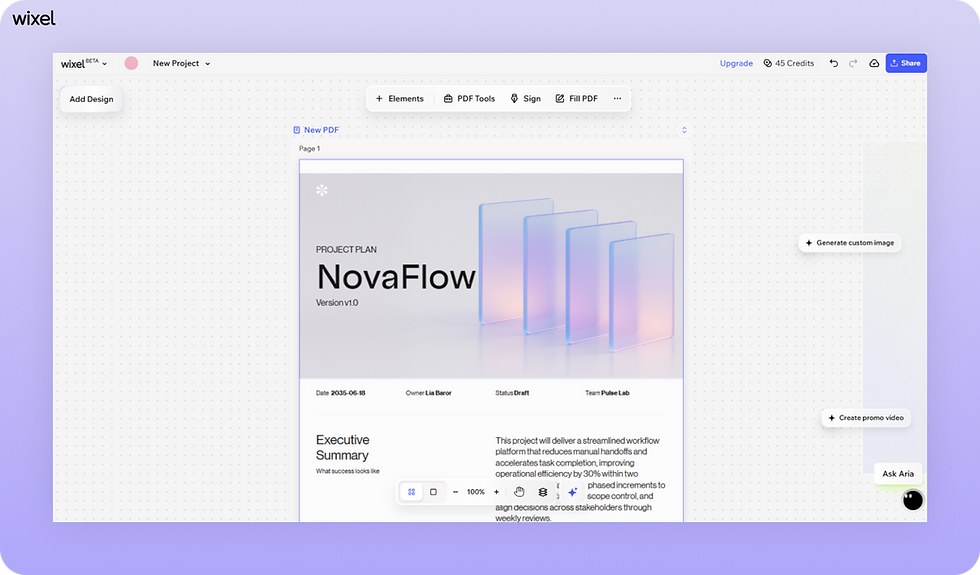
A PDF editor, like Wixel can also help you understand:
Explore Wixel's full range of PDF tools:
03. Upload your PDF
Once you've picked your PDF tool, it’s time to get your file into the system. Most platforms have a clear Select File or Upload button or a large drop zone where you can simply drag your document from your desktop.
If you're using a tool that allows batch processing, you can upload multiple files at once. This is a huge timesaver if you have a stack of invoices or a series of contracts that all need to be emailed out by the end of the day.
04. Select your compression level
This is the most important step of this entire process. Many tools ask you to choose between Standard (medium reduction, good quality) and Strong (maximum reduction, lower quality).
Standard compression is usually the best bet for documents with images you want to keep clear. Strong compression is great for text-heavy documents where image quality isn't the priority. If your tool has a slider or specific settings, aim for the middle ground first to see if that gets your file size down enough.
05. Download and review
After the tool works its magic, you'll see a download button—and usually a report telling you how much space you saved (e.g., -45%". Download the new file and always open it up.
Scroll through the document to make sure everything is still readable. Check the images specifically, if they look too pixelated or fuzzy, go back and try a lighter compression setting. It’s always better to double-check now than to send a blurry proposal to a client.
How to compress a PDF FAQ
Will compressing a PDF make it look bad?
It can but it doesn't have to. Compression works by removing redundant data and lowering the resolution of images. If you choose standard or lossless compression, the visual difference is often unnoticeable to the human eye. Only strong or lossy compression will significantly degrade your image quality.
Why is my PDF so large in the first place?
The usual culprits are high-resolution images. If you dragged photos straight from a professional camera or stock site into your document, they're likely far larger than they need to be for a screen. Fonts that aren't embedded efficiently can also add unnecessary weight to the file.


