
Updated: Feb 11

Finding the best PDF editors today can feel overwhelming. Between expensive subscriptions, bloated interfaces and tools that only handle half the job, it’s hard to know which editor is actually worth your time.
This guide breaks down the 7 best PDF editors available right now, from all-in-one platforms to fast, browser-based solutions. Whether you’re updating a downloadable guide, signing contracts or managing business documents, there’s a PDF editor here that fits your workflow.

Wixel is a PDF editor that lets you edit text, add annotations and insert signatures without switching tools. Wixel also includes a PDF converter that turns Word, JPG, and other file types into PDFs in seconds, plus a PDF merger that combines multiple files into one clean, shareable document.
TL;DR: best PDF editors at a glance
We've rounded up a mix of heavy-duty software and quick online fixes. Check out this snapshot to find the one that matches your needs.
Name | Key feature | Best for |
Wixel PDF editor | Built-in website & document management | Website owners, small businesses |
Foxit | Secure collaboration tools | Teams & enterprises |
PDF Expert | Fast, native Apple experience | Mac & iOS users |
Sejda | Simple, task-based editing | Occasional users |
PDFescape | Quick browser-based edits | One-off, basic tasks |
DocFly | Cloud document management | Remote teams |
PDFelement | Advanced features at lower cost | Budget-conscious businesses |
What is a PDF editor?
A PDF editor is software that allows you to modify PDF files instead of just viewing them. With a PDF editor, you can edit text and images, rearrange pages, add digital signatures, create fillable forms and convert files to and from other formats.
Because PDFs were originally designed to be read-only, editing them requires specialized tools, making the choice of PDF editor especially important.
Discover more: everything you need to know about PDF files.
7 best PDF editor examples
Here are the top tools that make editing PDFs easy and efficient.
01. Wixel

Wixel combines PDF editing with seamless web-based document management. Instead of treating PDFs as standalone files, Wixel lets you create, edit update and publish documents directly in a single workflow, which is ideal for businesses that rely on downloadable content.
You can quickly fix text, update pricing, replace visuals and keep documents aligned with your website content without exporting files between platforms.
The Wixel platform also offers a PDF converter to turn images into PDFs so they’re compressed, shareable and uneditable.
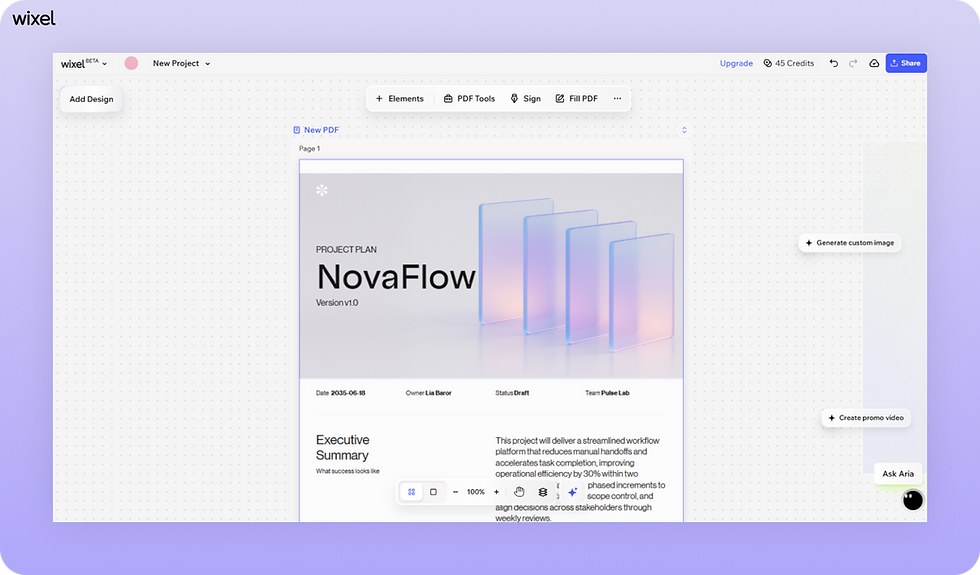
Why it works: Wixel removes friction: everything lives in one place, which means fewer tools, fewer errors and faster updates, especially for website owners and growing businesses.
Pricing: Wixel pricing ranges from a free plan to paid plans starting at $9/month (billed annually).
Learn more: how to make a PDF.
02. Foxit

Foxit is an enterprise-ready PDF editor known for its speed and security. It offers advanced editing tools, strong encryption and collaborative features that let teams review and manage documents together.
Why it works: It’s built for professional environments where document control, permissions and compliance matter.
Pricing: Free Foxit PDF editor and advance features with Foxit PDF Editor+ ($159.99 per year).
Learn more: how to combine a PDF easily.
03. PDF Expert

Designed exclusively for Apple devices, PDF Expert delivers a smooth, native experience on Mac and iOS. It’s fast and lightweight, making it great and for annotation, editing and reading large documents.
Why it works: It feels like part of macOS, not a third-party add-on, perfect for Apple-first users.
Pricing: Paid yearly plan ($79.99) or Lifetime plan ($139.99 one-time payment).
Learn more: how to make a PDF fillable.
04. Sejda

Sejda is ideal for quick, no-friction PDF edits. Its task-based interface lets you jump straight into editing, merging or compressing without navigating complex menus.
Why it works: Simple, fast and powerful for occasional editing needs.
Pricing: Weekly ($5 one-time payment), Monthly ($7.50 per month) or Yearly ($63 per year) payment options.
Learn more: how to compress a PDF without losing quality.
05. PDFescape

PDFescape is a lightweight, browser-based PDF editor designed for fast, simple edits. It allows users to add text, annotations, form fields and basic shapes without installing software.
Why it works: It’s ideal for quick fixes. If you need to tweak a PDF, fill out a form or add notes without committing to a full-featured platform, PDFescape gets the job done with minimal friction.
Pricing: Free, Premium ($2.99/month) and Ultimate ($5.99/month) plans available.
Learn more: how to split a PDF.
06. DocFly

DocFly combines PDF editing with cloud storage, making it useful for users who want to organize and manage documents online. It also includes form creation tools.
Why it works: It doubles as both an editor and a lightweight document hub.
Pricing: Free plan available, plus DocFly Pro Monthly ($7.99 per month) and DocFly Pro Annual ($3.99 per month).
Learn more: how to make a PDF editable.
07. PDFelement

PDFelement offers advanced features like OCR, form automation and data extraction for both Mac and Windows. Its interface is modern and beginner-friendly.
Why it works: Strong features, adaptable for both Windows and Mac.
Pricing: For Windows, 1 or multiple PC options, starting at $77.49 per year, or $119.99 for Lifetime plan. For Mac OS X, 1 or multiple Mac options, starting at $72.49 per year, or $112.99 for Lifetime.
Please note: All information in this article is correct as of 20th January, 2026.
Best PDF editors FAQ
Can I edit a PDF for free?
Yes. Some PDF editor tools offer free versions, but they usually include limits on file size, daily tasks or advanced features.
Why can't I edit text in my PDF?
The PDF is likely a scanned image. You’ll need an editor with OCR (Optical Character Recognition) to convert it into editable text.
Are online PDF editors safe?
Most reputable tools use encryption and automatically delete files after a short time. For highly sensitive documents, offline editors provide extra control.


