
Updated: Feb 1

Whether you're a freelancer organizing invoices, a student merging assignments, or a business owner compiling a report, knowing how to combine a PDF into a single file is a basic skill that saves serious time. Instead of sending five separate attachments, you can present everything in one clean, professional file using a PDF combiner.
This guide shows you exactly how to merge your PDF files quickly and securely. You'll learn how to organize your documents, choose the right tools for the job and make sure your final file looks exactly the way you want it to before you hit send.
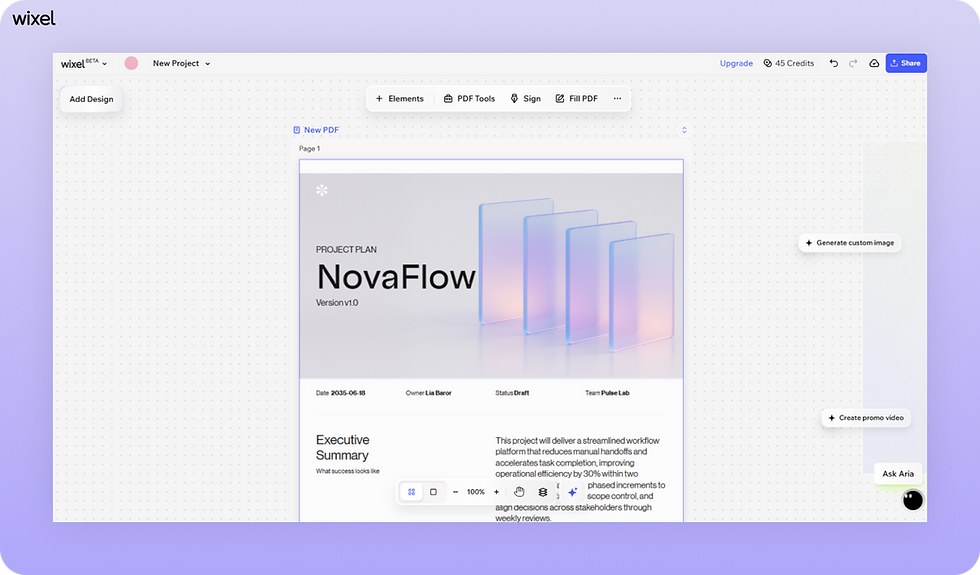
Wixel is a PDF editor that lets you edit text, add annotations and insert signatures without switching tools. Wixel also includes a PDF converter that turns Word, JPG, and other file types into PDFs in seconds, plus a PDF merger that combines multiple files into one clean, shareable document.
TL;DR: How to combine a PDF
Merging PDF files is a straightforward process once you know the steps. Here's the quick breakdown of how to get your documents in order.
Step | Action | Why it matters |
01. Prepare the files | Gather and name all your PDFs. | Prevents confusion and lost pages. |
02. Choose a tool PDF | Select an online PDF tool like Wixel or desktop merger. | Ensures you have the right features for your needs. |
03. Upload docs | Import your files into the tool. | Gets your content ready for processing. |
04. Arrange pages | Drag and drop files into the correct order. | Ensures the final document flows logically. |
05. Merge and save | Click "Merge" and download the new file. | Finalizes the process and secures your work. |
06. Review it | Check the final PDF for errors. | Catches mistakes before you share the file. |
Explore the best PDF editors for document management.
How to combine a PDF in 6 easy steps
Follow these six steps to merge your PDF files and documents into a single, organized file that's ready for business.

01. Organize and rename your PDF files
Before you open any software, take a moment to collect all the documents you want to combine. It's much easier to work with files when they have clear, descriptive names like Invoice_01 and Invoice_02 rather than Scan_99823."Put them all in a single folder on your desktop so you aren't hunting for them later.
This preparation step might seem small but it prevents major headaches. If you upload the wrong version of a contract or a draft instead of the final copy, you'll have to start the whole process over. Clear naming helps you spot the right PDF files instantly.
02. Choose your PDF merger tool
There are two main ways to combine files: using online tools or desktop software. For quick, one-off tasks, free online tools like Wixel's PDF editor are easy to use. They work directly in your browser and don't require an installation. Wixel also offers other PDF tools, such as a PDF converter, for managing your document assets efficiently within your creative and graphic design projects.
Explore:

Learn more:
03. Upload your documents and files
Once you've selected your tool, look for a Select files or Upload PDF button. Most online PDF tools also allow you to drag and drop your files directly from your folder into the browser window or application.
Select all the PDFs you want to merge at once to speed things up. Be mindful of file size limits if you're using a free online tool. Some platforms cap uploads at a certain size (e.g., 15MB). If your PDF files are too large, you may need to compress them individually before you can combine them.

04. Arrange your file order
After uploading, the tool will display thumbnails of your documents. This is your chance to fix the flow. If your cover letter ended up at the end of the packet, simply click and drag it to the front. You can usually rearrange entire files or, in more advanced tools, move individual pages between documents.
Check this order carefully. The logic of your final document depends on it. You want the reader to experience the content in a specific sequence, so ensure the narrative flows correctly from page one to the end.
05. Merge and download
With everything in the right place, look for the Merge, Combine or Create PDF button. One click is usually all it takes. The tool will then combine your separate PDF files into one continuous document. Once processing is complete, download the new file to your computer.
Don't rely on the default name the tool gives it, which is often a string of random numbers. Rename your new combined file immediately to something professional and recognizable, like "Project_Proposal_Final_Combined."
06. Review the final document
Never send a merged document without opening it first. Scroll through every page to ensure no formatting was lost during the conversion. Check that images are still clear, text is readable and pages haven't been rotated or cropped unexpectedly.
This final quality check ensures that what you see is exactly what your recipient will see. It’s the difference between looking like a tech-savvy professional and someone who just threw files together in a rush.
How to combine a PDF FAQ
Can I combine password-protected PDFs?
Generally no, most PDF editors are not able to work with password-protected PDFs.
Will combining PDFs reduce the quality?
It depends on the tool and settings you use. High-quality merger tools preserve the original resolution of your text and images. However, some free online tools might compress the file to keep the size down, which can result in slightly blurry images. If quality is critical, look for settings that allow you to maintain original quality.


