
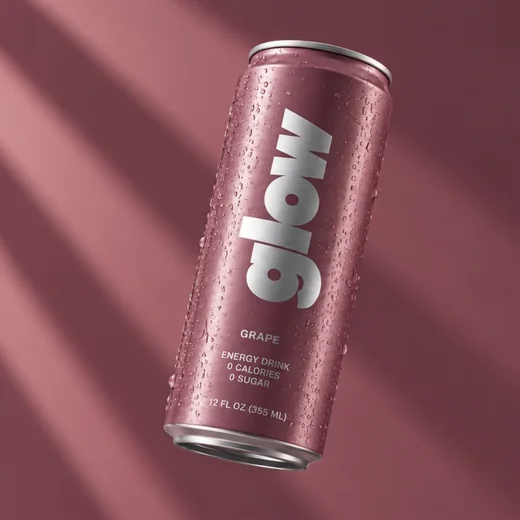


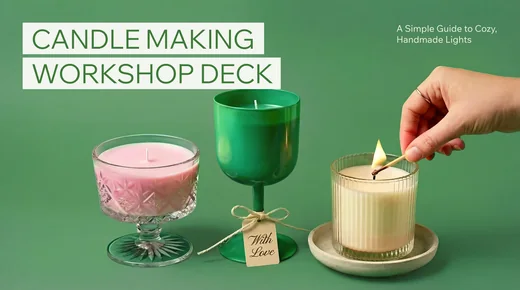

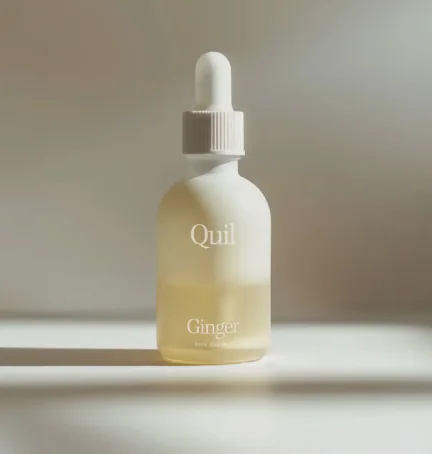



Wixel MCP Design Without Leaving the Chat
Ask for a logo, a video ad, a social post, a slide deck or a doc and get it back in the conversation, on brand.
Add the Wixel MCP to your AI assistant
Add the Wixel MCP in Claude
Click the button to open Claude with the Wixel MCP ready to add. Then click Add.
Add Wixel MCP to Claude- or
Add it by URL
If the button doesn't work, go to Claude, then Settings, Connectors and Add custom connector. Name it Wixel and paste this URL.
https://mcp.wix.com/wixel
Connect and start creating
Sign in with your Wixel account, then ask Claude to design with Wixel.
Add the Wixel MCP in ChatGPT
Find Wixel in the Plugins Directory or click the button below. Then click Add and sign in.
Add Wixel MCP to ChatGPTConnect and start creating
Sign in with your Wixel account, then ask ChatGPT to design with Wixel.
Start Creating
Copy and run this command
Run it in your terminal to add the Wixel MCP to Claude Code.
claude mcp add --transport http wixel https://mcp.wix.com/wixel
Connect and start creating
Sign in when prompted, then ask Claude Code to design with Wixel.
Copy the MCP configuration
You'll add this to Cursor's MCP settings in the next step.
{ "mcpServers": { "wixel": { "url": "https://mcp.wix.com/wixel" } } }Add it to mcp.json
Paste it into .cursor/mcp.json in your project, or ~/.cursor/mcp.json to use it everywhere.
Connect and start creating
Sign in with your Wixel account, then ask Cursor to design with Wixel.
Copy the MCP configuration
It works with any client that supports MCP.
{ "mcpServers": { "wixel": { "url": "https://mcp.wix.com/wixel" } } }Add it to your client's MCP settings
Paste it into your client's MCP configuration file or connectors settings.
Connect and start creating
Sign in with your Wixel account, then ask your assistant to design with Wixel.
What you can make from a chat
One connector covers the formats a business needs. Ask for one asset or a whole set in a single message.

Images
Product shots, social posts and illustrations. Edit one by asking.

Logos
Four concepts to choose from, then variations and an SVG.
Logo animations
Your logo as a five second reveal.
Video ads
An ad for your business, built scene by scene.
Stories
9:16 stories and teasers, with your details as captions.
Photo edits
Turn noon into sunset, a desert into a city, summer into snow.
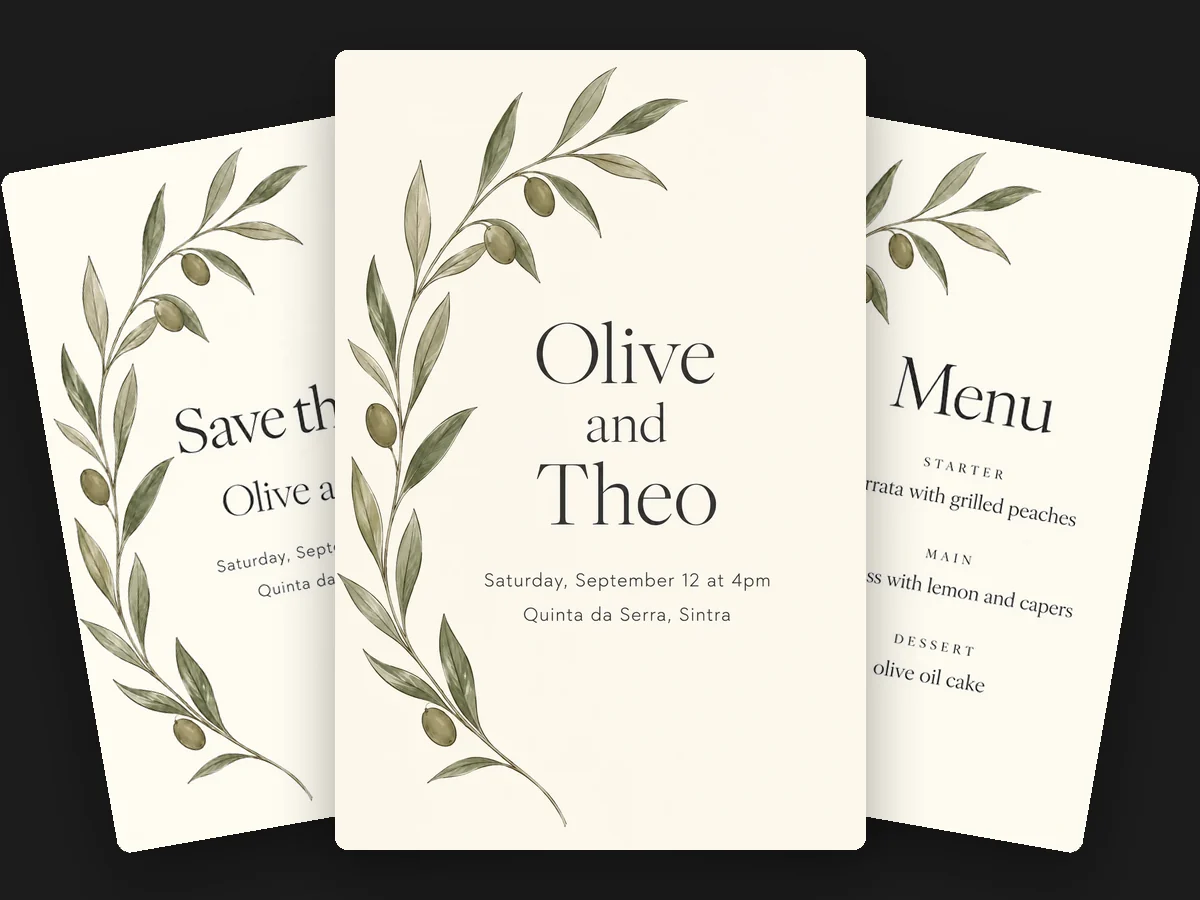
Invitations and cards
Invitations, save the dates, menus and thank you cards as one matching set.
Game and app art
Sprite sheets and app icon sets, downloaded into your project.
See what one conversation can make
Real conversations with the Wixel MCP: what was asked, and what came back.
Sale posts, on brand
Use my Cherry Tips brand.
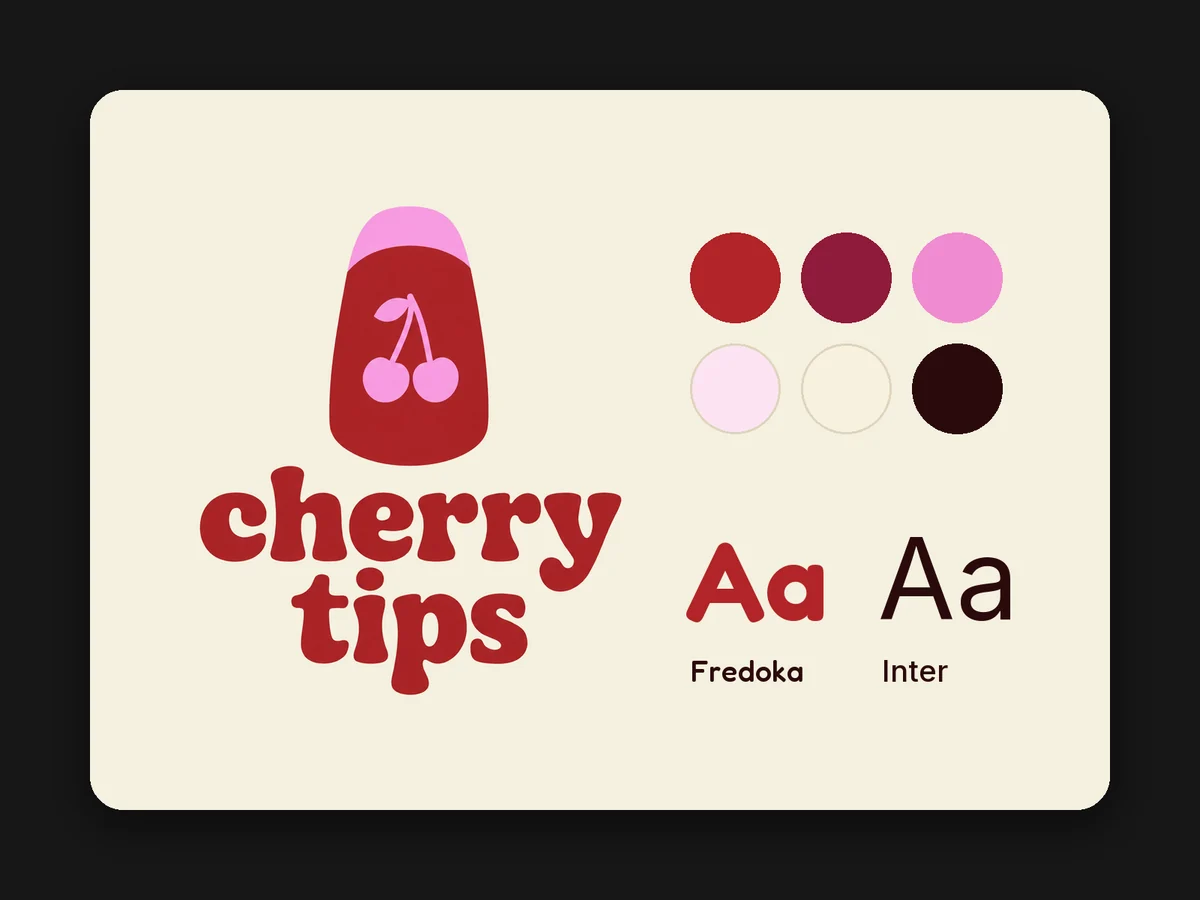
BrandCherry Tips is selected. Its logo, colors and fonts apply from here.
Make five Instagram posts for our nail studio's summer sale, 30% off all sets from June 1 to 14. Make each one different and more editorial than salesy, with the logo small: a macro of one set, a summer still life with cherries, a row of swatches, a type-only post, and the sale announcement.
Social postsFive portrait posts, each one different.





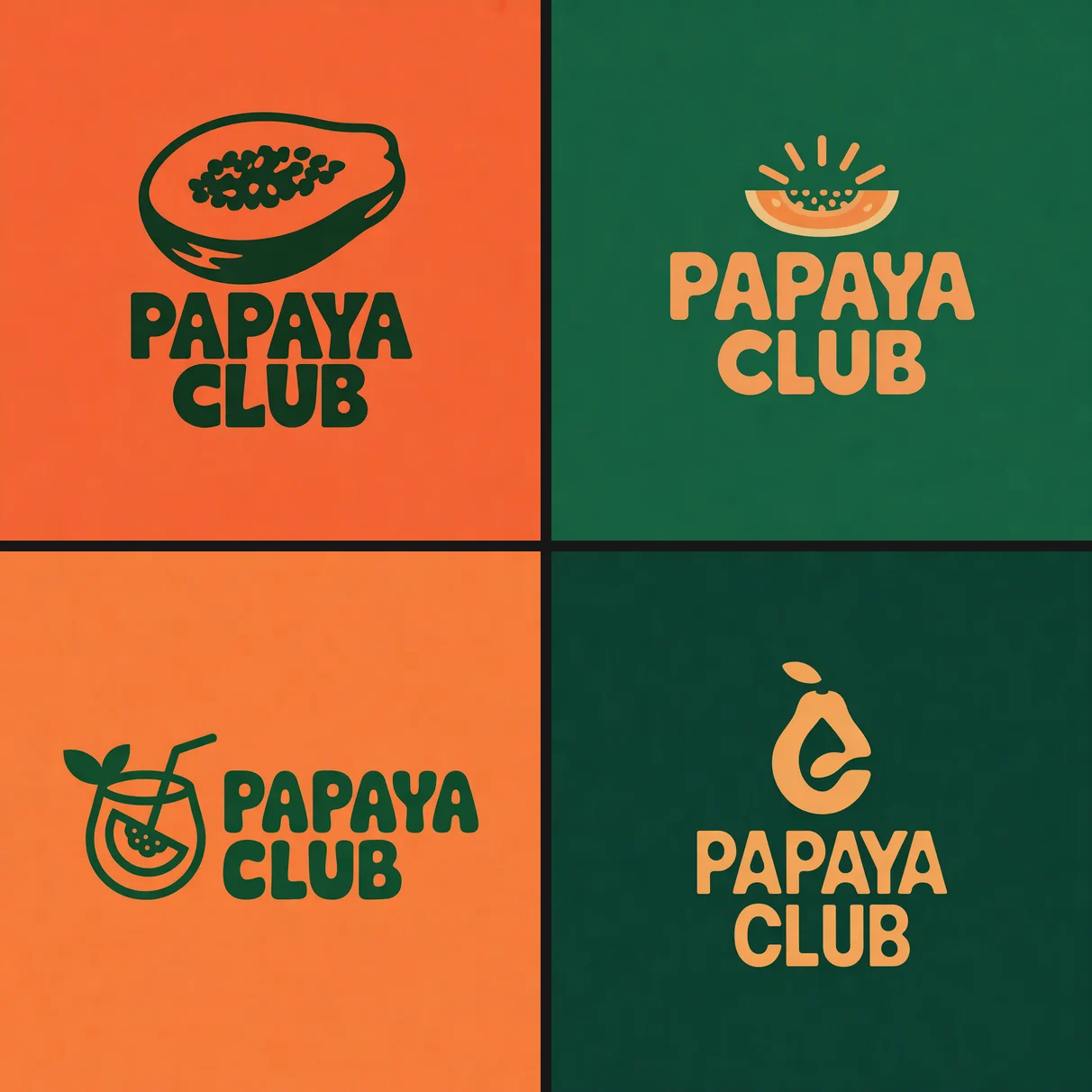
LogoFour logo concepts to choose from.
A whole game's art, in one style
Pup Rocket was built in Claude Code from one prompt. With the Wixel MCP connected, the hero, the enemies, the badges and the app icon came back as one set.
 Hero, 12 poses
 Bird, 8 frames
 Bat, 8 frames

Frames that line up
Sprite sheets come with aligned frames and a frame map, so they animate as they are.
One style across the set
The hero, the enemies, the badges and the app icon are drawn as one family. Add an enemy later and it still matches.
Files in your project
Download sprite sheets, transparent PNGs and app icon sets straight into your repo.
On brand and in character, every time
The Wixel MCP keeps track of your brand and of the conversation, so the tenth asset matches the first.
- Aa
Your brand, applied every time
Pick one of your Wixel brands and each asset uses its logo, colors and fonts.




Characters that stay the same
Wixel remembers the characters and style of a conversation, so the hero of your first image is the hero of your last.
Yours to keep editing
Each result comes back with a download and a link to open it in Wixel.
How to create designs with the Wixel MCP
Add the Wixel MCP to your AI assistant
Add the connector URL https://mcp.wix.com/wixel to Claude, ChatGPT, Cursor, Claude Code or any client that supports MCP.
Sign in with your Wixel account
Your assistant asks you to sign in the first time you use the Wixel MCP. A free account is enough to start.
Ask for what you need
Describe the image, video, logo, slide deck or doc. Wixel creates it and sends back a preview, a download and a link to edit it in Wixel.
FAQ
What is the Wixel MCP?
The Wixel MCP is a connector that adds Wixel, the AI creative studio from Wix, to AI assistants that support the Model Context Protocol. Once it's added, you ask your assistant for an image, a video, a logo, a slide deck or a doc, and Wixel creates it.
Which AI assistants does the Wixel MCP work with?
Claude, ChatGPT, Claude Code and Cursor, and any other client that supports remote MCP servers.
What can I create with the Wixel MCP?
Images, logos and logo animations, video ads, 9:16 stories and teasers, slide decks, docs, social posts, invitations, flyers, business cards and QR codes. You can also download sprite sheets and app icon sets into a code project.
How do I add the Wixel MCP to Claude?
In Claude, open Settings, then Connectors, and choose Add custom connector. Name it Wixel and paste https://mcp.wix.com/wixel. Sign in with your Wixel account when Claude asks, then ask Claude to design with Wixel.
How do I add the Wixel MCP to ChatGPT?
Open Wixel in the ChatGPT Plugins Directory at https://chatgpt.com/plugins/plugin_asdk_app_6a12aae311d8819191625c2e688b153f, click Add and sign in with your Wixel account. Then start a chat and ask ChatGPT to design with @Wixel.
How do I add the Wixel MCP to Claude Code?
Run this command in your terminal: claude mcp add --transport http wixel https://mcp.wix.com/wixel. Sign in when prompted, then ask Claude Code to design with Wixel.
How do I add the Wixel MCP to Cursor?
Add this to .cursor/mcp.json in your project, or to ~/.cursor/mcp.json to use it everywhere: {"mcpServers":{"wixel":{"url":"https://mcp.wix.com/wixel"}}}. Then sign in with your Wixel account and ask Cursor to design with Wixel.
Does the Wixel MCP use my brand?
Yes. Ask your assistant to use one of your Wixel brands and choose which one. Wixel then applies that brand's logo, colors and fonts to what you create in that conversation.
Do characters stay the same from one image to the next?
Yes, within a conversation. Wixel remembers the characters, style and assets of the conversation, so keep working in the same chat to keep them consistent.
Can I edit what the Wixel MCP creates?
Yes. Ask for changes in the chat, or open the result in Wixel with the link that comes back with it. Each result also comes with a download.
How long does the Wixel MCP take to create a design?
About a minute for an image, and a few minutes for a video.
Is the Wixel MCP free?
It's free to add. Creating uses Wixel credits, and a free Wixel account comes with credits every month.
Your next design is one message away
Give your AI assistant one prompt and it sets up the Wixel MCP for you, or shows you how.